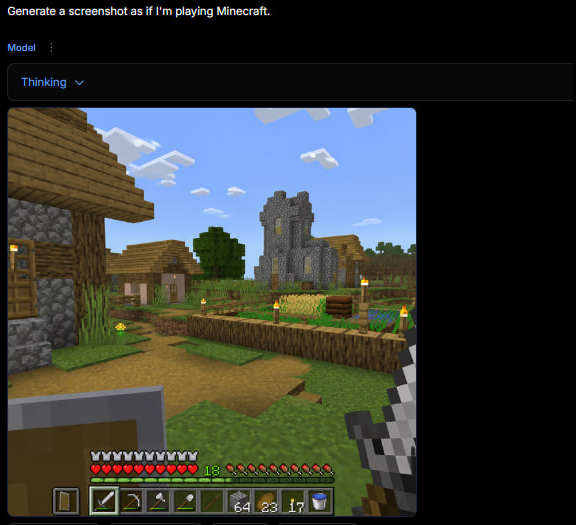
Minecraft Gameplay in AI Generator UI
A dark web app screenshot showing a generated first-person Minecraft village gameplay scene with HUD, useful for recreating the tweet-style AI game screenshot.
This is a GPT Image 2 prompt case for Other Inspiration. Use the copy-ready prompt below to generate similar visuals, and review Awesome GPT Image 2 Prompts attribution plus commercial-use rights before reuse.
Free 1K preview
Generate one preview image instantly, no sign-up required.
Prompt
Copy-ready prompt
Goal: Create a square screenshot of a dark AI image-generation web interface showing a generated Minecraft gameplay screenshot. The interface should look like someone typed {argument name="user prompt" default="Generate a screenshot as if I'm playing Minecraft."} and received a rendered game image below it.

Canvas: Square 1:1 image, approximately 576 by 576 pixels, dark black background, with the content aligned near the top-left and a large empty black margin on the right and bottom.

Top UI layout: At the very top-left, show the white prompt text: “Generate a screenshot as if I'm playing Minecraft.” Beneath it, show a small blue label “Model” with a vertical three-dot menu icon beside it. Below that, draw a wide dark rounded rectangle dropdown bar containing the blue text “Thinking” and a small downward chevron. The UI should feel like a minimal web app in dark mode.

Generated image panel: Under the dropdown, place a large square Minecraft-style gameplay screenshot with slightly rounded corners. The screenshot should be first-person perspective in a bright blocky village scene.

Minecraft scene details: Show a sunny daytime village with a blue sky and exactly 8 visible white blocky cloud clusters. On the left foreground, include a partially visible wooden-and-cobblestone house with a wooden door, plank roof, cobblestone wall, and a lit torch. In the center distance, show a gray stone church/tower with narrow yellow-lit windows. Around it, include a small village house, a leafy green tree, grass blocks, a dirt path, and a fenced crop field. The crop field should contain golden wheat, green crops, a wooden fence border, and exactly 6 visible torch posts with yellow flames around the village/farm area. Keep the Minecraft aesthetic authentic: cubic blocks, pixelated textures, low-resolution game rendering, no photorealism.

First-person HUD and equipment: In the lower left foreground, show a raised shield. In the lower right foreground, show the player holding an iron sword. Along the bottom, draw the Minecraft HUD with exactly 10 red hearts, exactly 10 hunger drumsticks, a green experience level number “18,” and a 9-slot hotbar. The hotbar should contain these 9 visible slots from left to right: shield icon, iron sword, pickaxe, axe, shovel, empty or dark slot, stack of 64 blocks, stack of 23 torches/items, stack of 17 items, plus a water bucket icon visible at the far right edge if space permits. Make the HUD slightly pixelated and game-accurate.

Visual style: The whole image should look like an actual screenshot of a browser-based AI generator displaying a generated Minecraft gameplay image, not a clean standalone render. Use dark UI chrome, small crisp text, and a blocky game screenshot embedded inside it. No watermark, no extra captions, no logos.
Prompt variables
Editable argument placeholders found in the prompt, with their default values.
Best for
- - Other Inspiration visual exploration
- - Image generation and reference-image edits
- - Reusable briefs that keep source attribution visible
Change these parts
- - Subject, product, character, or scene
- - Aspect ratio, camera, lighting, and background
- - Brand, text, color, and output constraints
Recommended model and settings
- - Model: gpt-image-2
- - Input mode: Text to Image
- - Aspect ratio: source
- - Commercial status: review original source
How to use this prompt
- 1. Copy the prompt and preserve its structure for the first test.
- 2. Replace the subject, context, and publishing channel.
- 3. Change one camera, lighting, or style variable per iteration.
- 4. Inspect the output, source, text, and rights before reuse.
Limitations, source, and reuse cautions
- - Generated output is an editable draft, not factual, legal, or rights evidence.
- - Review the linked source, people, brands, logos, text, and third-party media before commercial use.
More cases in this category
Prioritized by category, input mode compatibility, quality, and lower risk.
Reuse and source notes
Use this prompt safely after previewing the case.
- 1.Copy the prompt or open it directly in Dovoo with the generation button.
- 2.Adjust variables, aspect ratio, and reference images for your own use case.
- 3.Before publishing or paid usage, verify source rights, attribution requirements, and brand or likeness risks.
Can I use this prompt commercially?
Commercial-use status is allowed. Review the original source, license, brand constraints, and legal requirements before paid usage.
Where does this case come from?
This case is imported from Awesome GPT Image 2 Prompts; keep attribution visible and check the source URL before reuse.