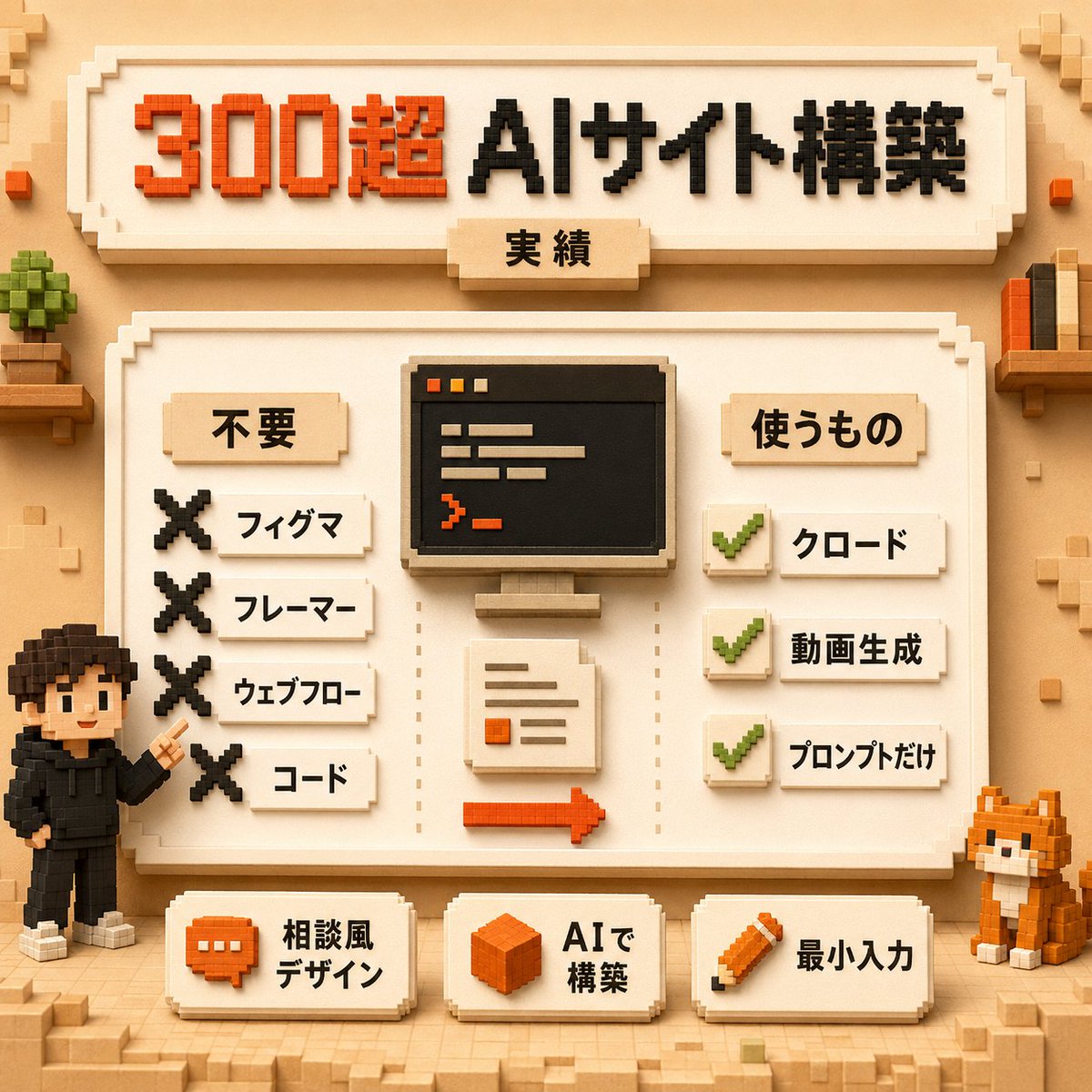
Voxel AI Website Building Infographic
A square Japanese voxel-style infographic showing an AI website-building workflow with rejected tools, required tools, and minimal-input feature cards.
This is a GPT Image 2 prompt case for Graphic & Poster. Use the copy-ready prompt below to generate similar visuals, and review Awesome GPT Image 2 Prompts attribution plus commercial-use rights before reuse.
Free 1K preview
Generate one preview image instantly, no sign-up required.
Prompt
Copy-ready prompt
Goal: Create a square voxel-art Japanese infographic poster about building many AI websites with minimal tools, using a warm beige Minecraft-like block aesthetic.

Canvas: 1:1 square composition, 768x768 style, soft studio lighting, tan paper-and-wood background, subtle voxel blocks in the corners, crisp isometric pixel/voxel edges, shallow shadows, no photorealism.

Main headline area: At the top, place a large cream beveled signboard with blocky Japanese text reading {argument name="headline text" default="300超 AIサイト構築"}. Make “300超” bright orange-red and “AIサイト構築” black. Under the headline, attach a small centered beige tab label reading {argument name="subtitle text" default="実績: Achievements, track record"}. Use thick extruded voxel lettering.

Central layout: Below the headline, create one large cream framed panel with a decorative stepped border. Inside it, divide the content into three vertical zones: left checklist, center workflow illustration, right checklist. Use dotted vertical divider lines between the zones.

Left checklist: Title label reads {argument name="left section title" default="不要: Unnecessary, not needed"}. Show exactly 4 rejected items, each with a large black voxel X icon on the left and a small cream label on the right. The 4 labels, top to bottom, are: 「フィグマ」, 「フレーマー」, 「ウェブフロー」, 「コード」.

Center workflow illustration: Show exactly 3 main elements stacked vertically: 1) a black computer monitor with a simple code/editor window using orange and beige lines, 2) a cream document sheet with a few text lines and one orange square, 3) an orange right-pointing arrow along the bottom. Keep everything blocky and voxel-built.

Right checklist: Title label reads {argument name="right section title" default="使うもの"}. Show exactly 3 approved items, each with a green voxel checkmark icon on a cream square and a small cream label to the right. The 3 labels, top to bottom, are: 「クロード」, 「動画生成」, 「プロンプトだけ」.

Bottom row: Place exactly 3 separate cream beveled cards across the bottom of the main panel. Card 1 has an orange chat bubble icon and text 「相談風 デザイン」. Card 2 has an orange cube icon and text 「AIで 構築」. Card 3 has an orange pencil icon and text 「最小入力」.

Characters and decorative objects: Add exactly 2 voxel characters/mascots: on the lower left, a small black-haired person in a black hoodie pointing upward toward the panel; on the lower right, an orange-and-white voxel cat sitting beside the panel. Add a small potted blocky plant on a shelf at upper left and a small shelf with upright books at upper right. Include scattered tiny beige and orange cubes for decoration, but keep the poster clean and readable.

Visual style: High-quality 3D voxel diorama, blocky extruded Japanese typography, warm cream, tan, orange, black, and green palette, soft ambient occlusion, orthographic front view, friendly educational tech infographic, neatly aligned labels, crisp readable Japanese text.

Constraints: Use exactly 4 X-mark rejected items, exactly 3 checkmark approved items, exactly 3 bottom feature cards, and exactly 2 mascot figures. Do not add extra sections, extra checklists, logos, watermarks, or English text.
Prompt variables
Editable argument placeholders found in the prompt, with their default values.
Best for
- - Graphic & Poster visual exploration
- - Image generation and reference-image edits
- - Reusable briefs that keep source attribution visible
Change these parts
- - Subject, product, character, or scene
- - Aspect ratio, camera, lighting, and background
- - Brand, text, color, and output constraints
Recommended model and settings
- - Model: gpt-image-2
- - Input mode: Text to Image
- - Aspect ratio: source
- - Commercial status: review original source
How to use this prompt
- 1. Copy the prompt and preserve its structure for the first test.
- 2. Replace the subject, context, and publishing channel.
- 3. Change one camera, lighting, or style variable per iteration.
- 4. Inspect the output, source, text, and rights before reuse.
Limitations, source, and reuse cautions
- - Generated output is an editable draft, not factual, legal, or rights evidence.
- - Review the linked source, people, brands, logos, text, and third-party media before commercial use.
More cases in this category
Prioritized by category, input mode compatibility, quality, and lower risk.
Reuse and source notes
Use this prompt safely after previewing the case.
- 1.Copy the prompt or open it directly in Dovoo with the generation button.
- 2.Adjust variables, aspect ratio, and reference images for your own use case.
- 3.Before publishing or paid usage, verify source rights, attribution requirements, and brand or likeness risks.
Can I use this prompt commercially?
Commercial-use status is allowed. Review the original source, license, brand constraints, and legal requirements before paid usage.
Where does this case come from?
This case is imported from Awesome GPT Image 2 Prompts; keep attribution visible and check the source URL before reuse.