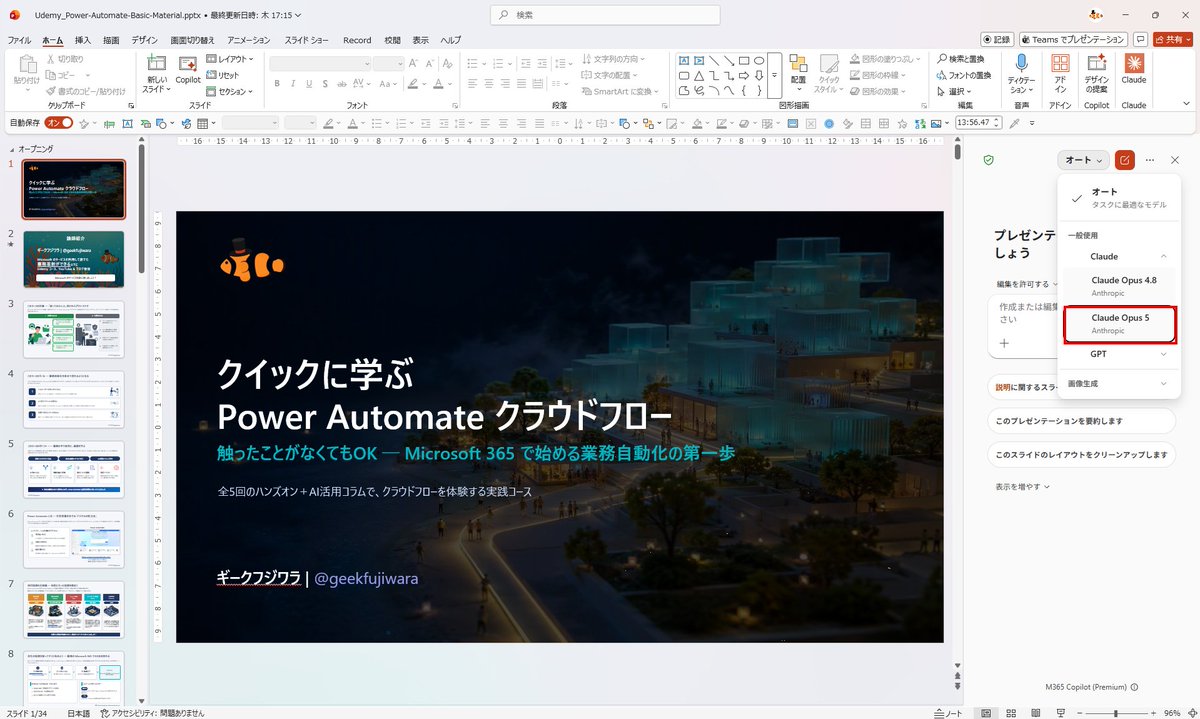
Japanese PowerPoint Claude Opus 5 Screenshot
Generates a realistic Japanese PowerPoint editing screenshot with a dark Power Automate course cover slide and an AI model selector highlighting Claude Opus 5.
This is a GPT Image 2 prompt case for Other Inspiration. Use the copy-ready prompt below to generate similar visuals, and review Awesome GPT Image 2 Prompts attribution plus commercial-use rights before reuse.
Free 1K preview
Generate one preview image instantly, no sign-up required.
Free text preview doesn’t preserve reference-image consistency.
Prompt
Copy-ready prompt
Goal: Create a realistic 16:9 desktop screenshot of Microsoft PowerPoint in Japanese, showing a course slide deck being edited with a Copilot/Claude model selection panel open on the right.

Canvas: Wide landscape screenshot, 1200×675 style, crisp UI capture, light gray PowerPoint chrome, no browser frame. The main focus is a PowerPoint editing workspace with a dark title slide centered.

Layout: Show the full PowerPoint window with the ribbon across the top, slide thumbnail strip on the left, main slide canvas in the center, and an AI assistant side panel on the right. Use Japanese UI labels throughout the PowerPoint interface. The file name in the top title area should read {argument name="file name" default="Udemy_Power-Automate-Basic-Material.pptx"}, followed by a Japanese last-updated note and time. The top ribbon should include Japanese tabs such as File, Home, Insert, Draw, Design, Transitions, Animations, Slide Show, Record, Review, View, and Help, plus add-in buttons for Copilot, PowerPoint, Designer, Claude, Teams presentation, and Share.

Left thumbnail strip: Show exactly 8 visible slide thumbnails, numbered 1 through 8. Slide 1 is selected with an orange border and is the same dark cover slide as the main canvas. Slide 2 is a teal agenda/overview slide. Slide 3 is a white process/workflow slide with green diagram elements and two illustrated people. Slide 4 is a white slide with three horizontal list rows. Slide 5 is a white slide with a blue interface screenshot and arrows. Slide 6 is a white slide with a software screenshot and callout box. Slide 7 is a white slide with a row of colorful cards and icon illustrations. Slide 8 is a white slide with a flowchart-like screenshot and a turquoise callout.

Main slide: Create a dark cinematic cover slide with a black-to-navy overlay over an architectural night scene: glowing modern stacked glass buildings on the right, misty atmosphere, pathways and tiny walking people below, trees in the lower right, and a deep dark empty area on the left for text. In the upper left of the slide place a small orange clownfish mascot wearing a tiny black top hat. The main title text should be large, bold, white Japanese: {argument name="main title text" default="クイックに学ぶ\nPower Automate クラウドフロー"}. Under it, add a cyan subtitle: {argument name="subtitle text" default="触ったことがなくてもOK — Microsoft 365 で始める業務自動化の第一歩"}. Beneath that, add a smaller white description line: {argument name="description line" default="全5回のハンズオン+AI活用コラムで、クラウドフローを体験する実践コース"}. At the bottom left of the slide, add the author line in white: {argument name="author line" default="ギークフジワラ|@geekfujiwara"}. Keep the slide text aligned left with generous spacing.

Right AI panel: Show a white assistant panel titled in Japanese as a presentation-related assistant. At the top right of this panel, show an open model dropdown. The dropdown must contain exactly 5 visible choices: Auto with a checkmark and a short Japanese description, Claude, Claude Opus 4.8, Claude Opus 5, and GPT. Emphasize the Claude Opus 5 row with a red rectangular outline. Under Claude Opus 5, show the provider label Anthropic in small gray text. Include additional Japanese panel buttons below such as opening the presentation, explaining the slide, and cleaning up the slide layout.

Visual style: Make it look like an authentic Microsoft PowerPoint desktop screenshot, with accurate spacing, rulers, ribbon icons, scrollbars, status bar, zoom control, and tiny UI text. Use soft antialiasing, subtle shadows, and realistic Windows app proportions. The image should read as a social-media screenshot demonstrating PowerPoint Agent Mode and multi-model selection.

Constraints: Do not add any extra slide thumbnails beyond the 8 visible thumbnails. Do not obscure the main slide title. Preserve the red highlight around Claude Opus 5. Avoid watermarks, browser tabs, or unrelated windows.
Prompt variables
Editable argument placeholders found in the prompt, with their default values.
Best for
- - Other Inspiration visual exploration
- - Image generation and reference-image edits
- - Reusable briefs that keep source attribution visible
Change these parts
- - Subject, product, character, or scene
- - Aspect ratio, camera, lighting, and background
- - Brand, text, color, and output constraints
Recommended model and settings
- - Model: gpt-image-2
- - Input mode: Image to Image
- - Aspect ratio: source
- - Commercial status: review original source
How to use this prompt
- 1. Copy the prompt and preserve its structure for the first test.
- 2. Replace the subject, context, and publishing channel.
- 3. Change one camera, lighting, or style variable per iteration.
- 4. Inspect the output, source, text, and rights before reuse.
Limitations, source, and reuse cautions
- - Generated output is an editable draft, not factual, legal, or rights evidence.
- - Review the linked source, people, brands, logos, text, and third-party media before commercial use.
More cases in this category
Prioritized by category, input mode compatibility, quality, and lower risk.
Reuse and source notes
Use this prompt safely after previewing the case.
- 1.Copy the prompt or open it directly in Dovoo with the generation button.
- 2.Adjust variables, aspect ratio, and reference images for your own use case.
- 3.Before publishing or paid usage, verify source rights, attribution requirements, and brand or likeness risks.
Can I use this prompt commercially?
Commercial-use status is allowed. Review the original source, license, brand constraints, and legal requirements before paid usage.
Where does this case come from?
This case is imported from Awesome GPT Image 2 Prompts; keep attribution visible and check the source URL before reuse.