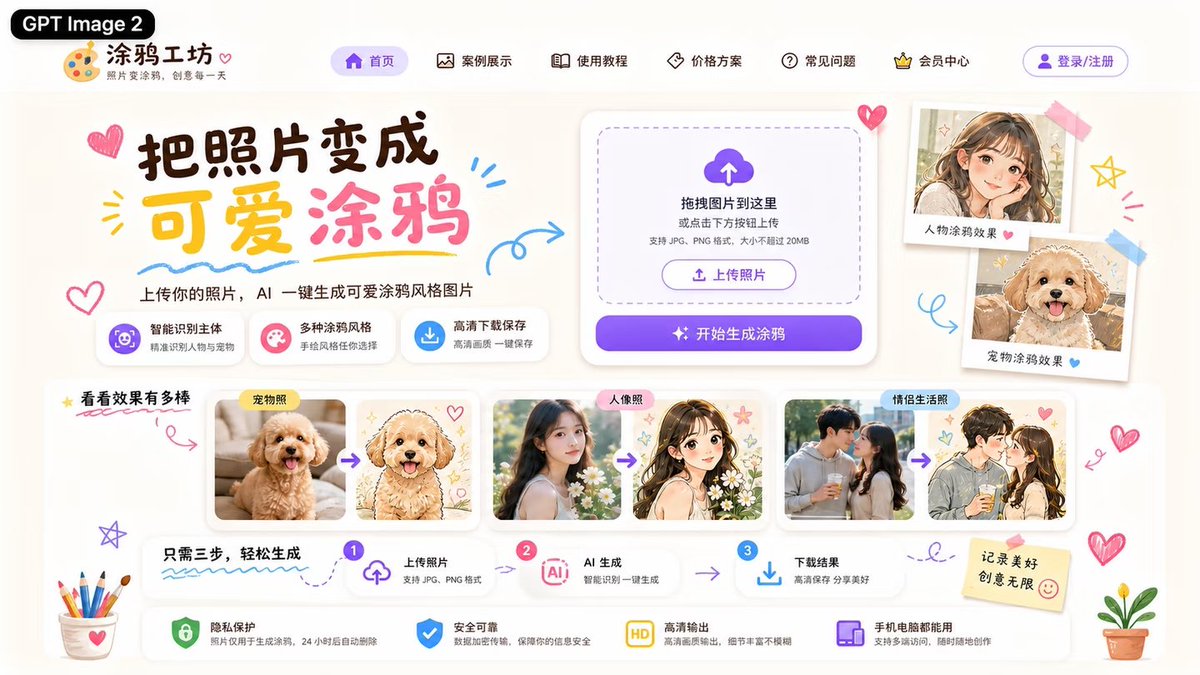
Cute AI Doodle Generator Landing Page
A polished Chinese web landing page mockup for an AI tool that converts photos into cute doodle-style illustrations.
This is a GPT Image 2 prompt case for Graphic & Poster. Use the copy-ready prompt below to generate similar visuals, and review Awesome GPT Image 2 Prompts attribution plus commercial-use rights before reuse.
This prompt is designed for multiple reference images. We will open Dovoo with the prompt and the available preview image; add the remaining references in Dovoo before generating.
Free 1K preview
Generate one preview image instantly, no sign-up required.
Free text preview doesn’t preserve reference-image consistency.
Prompt
Copy-ready prompt
Objective: Create a lovely Chinese landing page UI model for an AI website that converts photos into cute hand-drawn doodle illustrations, with the brand name {argument name="product name" default="Doodle Workshop"}, and attach a black capsule label with {argument name="model label" default="GPT Image 2"} written on it.

Canvas: A widescreen 16:9 webpage screenshot, approximately 1200x675 in size, with a warm, off-white paper background, soft shadows, rounded cards, and decorated with light purple, pink, yellow, and sky blue. Adopt a playful and cute stationery style, with edges decorated with doodle hearts, arrows, stars, scribbles, stickers, tape, colored pencils, and small potted plants.

Header: Place a black rounded label “GPT Image 2” in the upper left corner, followed by a palette icon Logo and the website name “Doodle Workshop”, with a small subtitle “Turn Photos into Doodles, Creativity Every Day” below. The top navigation bar displays 6 menu items with simple line icons: “Homepage” (highlighted in purple capsule), “Case Showcase”, “Usage Tutorial”, “Pricing Plans”, “FAQ”, and “Membership Center”. Add a purple-outlined “Login/Register” button on the far right.

First Screen Area: Create a large brush-style title {argument name="headline text" default="Turn Photos into Cute Doodles"} on the left side, with “Cute” in yellow and “Doodle” in pink, surrounded by doodle hearts and underlined strokes. Add a subtitle below: “Upload your photo, and AI will instantly generate cute doodle-style images.” Below the subtitle, place 3 feature labels: 1) Purple icon “Smart Subject Recognition / Accurately Identify People and Pets”, 2) Pink icon “Multiple Doodle Styles / Choose Your Hand-Drawn Style”, 3) Blue download icon “High-Definition Download and Save / Save High-Quality Images with One Click”.

Upload Card: Place a large white rounded upload panel in the middle right, including a dashed rounded drag-and-drop area, a purple cloud upload icon, and the text “Drag images here or click the button below to upload”, with a small note “Supports JPG, PNG formats, and a size of no more than 20MB”. Inside, include a small outline button “Upload Photo”, followed by a purple gradient main button with a flashing icon, reading “Start Generating Doodles”.

Right-Side Sticker Display: To the right of the upload card, display 2 Polaroid-style sample cards taped onto the page: 1) A cute anime-style girl portrait, labeled “Character Doodle Effect”, with a pink heart; 2) A fluffy dog doodle portrait, labeled “Pet Doodle Effect”, with a blue heart.

Case Gallery: Below the first screen, create an area titled “See How Amazing the Effects Are”, with yellow stars and a red underline. Display 3 sets of white rounded cards in the form of comparison images, each set containing two images separated by purple arrows: 1) Labeled “Pet Photo”, converting a real photo of a fluffy apricot dog into a cute hand-drawn dog illustration with hearts; 2) Labeled “Portrait Photo”, converting a real photo of a young woman into a soft anime girl illustration with flowers and stars; 3) Labeled “Couple Life Photo”, converting a couple’s photo into a romantic anime couple doodle. Ensure the generated images have a fresh, cute style and soft tones.

Process Bar: Below the gallery, create a three-step horizontal guide titled “Just Three Steps to Easily Generate”. Display 3 numbered steps connected by arrows: Step 1 “Upload Photo / Supports JPG, PNG format” (with upload icon), Step 2 “AI Generation / Smart Recognition, One-Click Generation” (with AI chip icon), Step 3 “Download Results / Save in High Definition, Share Beauty” (with download icon).

Bottom Security Bar: At the bottom, place 4 trust function cards with icons: 1) Green shield “Privacy Protection / Photos are only used for generating doodles and are automatically deleted after 24 hours”, 2) Blue shield checkmark “Safe and Reliable / Data encryption transmission, protecting your information security”, 3) Yellow HD badge “High-Definition Output / High-quality output, rich details and no blur”, 4) Purple device icon “Available on Mobile and Computer / Supports multi-end access, create anytime, anywhere”. Add a sticky note with {argument name="sticky note text" default="Record Beautiful Moments, Infinite Creativity"} written on it on the right, with a smiley face.

Visual Style: Modern and sophisticated UI/UX design, clear and readable Chinese typography, playful hand-drawn decorations, soft cream-colored background, glass-textured rounded white cards, delicate shadows, purple CTA gradients, and cute doodle illustration aesthetics. Avoid browser borders, watermarks, or additional areas not listed.
Prompt variables
Editable argument placeholders found in the prompt, with their default values.
Best for
- - Graphic & Poster visual exploration
- - Image generation and reference-image edits
- - Reusable briefs that keep source attribution visible
Change these parts
- - Subject, product, character, or scene
- - Aspect ratio, camera, lighting, and background
- - Brand, text, color, and output constraints
Recommended model and settings
- - Model: gpt-image-2
- - Input mode: Multi Image to Image
- - Aspect ratio: source
- - Commercial status: review original source
How to use this prompt
- 1. Copy the prompt and preserve its structure for the first test.
- 2. Replace the subject, context, and publishing channel.
- 3. Change one camera, lighting, or style variable per iteration.
- 4. Inspect the output, source, text, and rights before reuse.
Limitations, source, and reuse cautions
- - Generated output is an editable draft, not factual, legal, or rights evidence.
- - Review the linked source, people, brands, logos, text, and third-party media before commercial use.
More cases in this category
Prioritized by category, input mode compatibility, quality, and lower risk.

Reuse and source notes
Use this prompt safely after previewing the case.
- 1.Copy the prompt or open it directly in Dovoo with the generation button.
- 2.Adjust variables, aspect ratio, and reference images for your own use case.
- 3.Before publishing or paid usage, verify source rights, attribution requirements, and brand or likeness risks.
Can I use this prompt commercially?
Commercial-use status is allowed. Review the original source, license, brand constraints, and legal requirements before paid usage.
Where does this case come from?
This case is imported from Awesome GPT Image 2 Prompts; keep attribution visible and check the source URL before reuse.