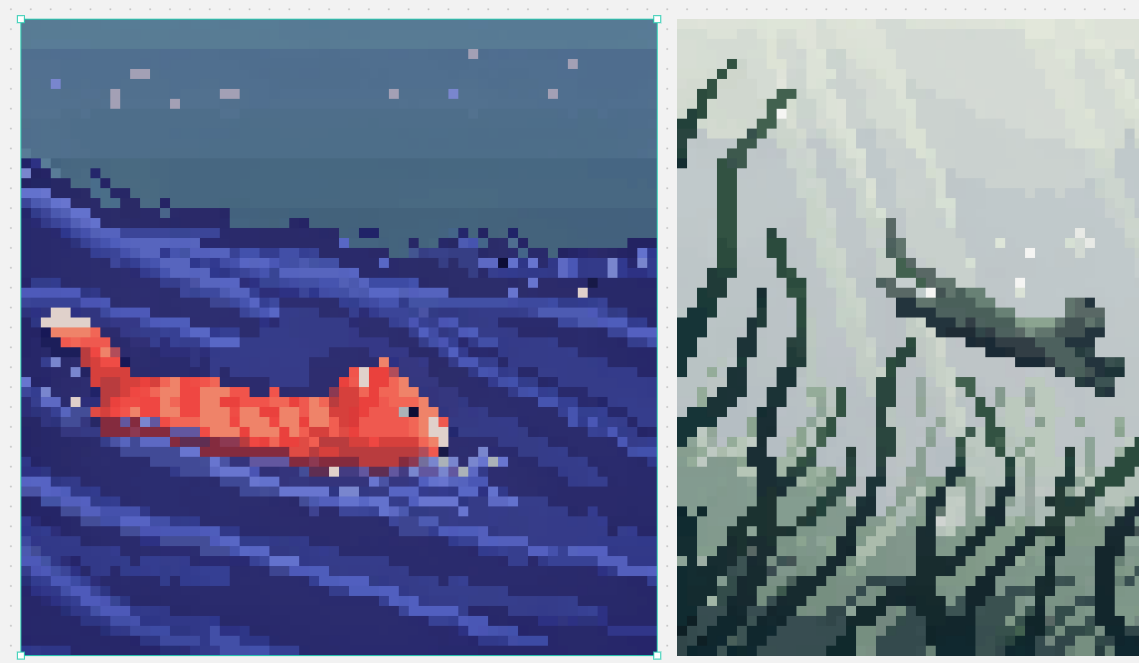
Split Pixel Art Canvas
Generates a two-panel pixel art comparison canvas with a selected ocean fish scene and a misty mountain landscape.
This is a GPT Image 2 prompt case for Illustration & Art. Use the copy-ready prompt below to generate similar visuals, and review Awesome GPT Image 2 Prompts attribution plus commercial-use rights before reuse.
Free 1K preview
Generate one preview image instantly, no sign-up required.
Prompt
Copy-ready prompt
Goal: Create a split-screen pixel art comparison image in the style of a design canvas, showing exactly 2 square pixel-art panels side by side.

Canvas: Wide horizontal canvas, about 1139×671 px, light gray workspace background with tiny scattered gray speckles. Place two large square artworks aligned horizontally with a narrow vertical gap between them. Add a thin bright cyan selection outline with small square corner/edge handles around the left artwork only, as if it is selected in an editor.

Layout: Left panel occupies slightly more than half the canvas width and is framed by the cyan selection box. Right panel is the same height but slightly narrower in the visible crop, flush to the right side. Keep both artworks rendered as low-resolution blocky pixel art with crisp square pixels and no antialiasing.

Left panel subject: A night ocean scene in deep indigo and blue pixel art. A small orange-red koi or goldfish swims from left to right in the lower left-to-center area, with a pale cream tail tip and lighter orange highlights on its segmented body. The water is dark navy with diagonal wave streaks and layered horizontal bands in violet, periwinkle, and electric blue. The upper third is a muted blue-gray night sky with exactly 8 small square star-like pixels scattered across it in pale lavender, pink, and blue. Mood: calm, retro game scene, underwater/night seascape.

Right panel subject: A misty mountainous landscape rendered in desaturated green-gray pixel art. Tall jagged mountain ridges and cliff faces fill the frame, with dark teal outlines and angular snowy or misty white planes. Include a winding dark ridge or branch-like ledge crossing the mid-right area, and pale foggy atmosphere in the upper background. Use muted sage, gray, off-white, and dark forest-green tones.

Visual style: authentic 16-bit pixel art, large visible square pixels, limited color palettes, high contrast silhouettes, no smooth gradients except stepped pixel dithering. Make the two panels feel like examples from different pixel-art models: left colorful and aquatic, right monochrome misty fantasy landscape.

Customizable details: left fish color {argument name="fish color" default="orange-red"}; left scene theme {argument name="left scene theme" default="night ocean"}; right landscape theme {argument name="right landscape theme" default="misty green-gray mountains"}; pixel art scale {argument name="pixel art scale" default="large crisp square pixels"}; selection outline color {argument name="selection outline color" default="bright cyan"}.

Constraints: Show exactly 2 main image panels. Do not add text, logos, characters, UI menus, or watermarks. Preserve the editor-like cyan selection border only around the left panel.
Prompt variables
Editable argument placeholders found in the prompt, with their default values.
Best for
- - Illustration & Art visual exploration
- - Image generation and reference-image edits
- - Reusable briefs that keep source attribution visible
Change these parts
- - Subject, product, character, or scene
- - Aspect ratio, camera, lighting, and background
- - Brand, text, color, and output constraints
Recommended model and settings
- - Model: gpt-image-2
- - Input mode: Text to Image
- - Aspect ratio: source
- - Commercial status: review original source
How to use this prompt
- 1. Copy the prompt and preserve its structure for the first test.
- 2. Replace the subject, context, and publishing channel.
- 3. Change one camera, lighting, or style variable per iteration.
- 4. Inspect the output, source, text, and rights before reuse.
Limitations, source, and reuse cautions
- - Generated output is an editable draft, not factual, legal, or rights evidence.
- - Review the linked source, people, brands, logos, text, and third-party media before commercial use.
More cases in this category
Prioritized by category, input mode compatibility, quality, and lower risk.
Reuse and source notes
Use this prompt safely after previewing the case.
- 1.Copy the prompt or open it directly in Dovoo with the generation button.
- 2.Adjust variables, aspect ratio, and reference images for your own use case.
- 3.Before publishing or paid usage, verify source rights, attribution requirements, and brand or likeness risks.
Can I use this prompt commercially?
Commercial-use status is allowed. Review the original source, license, brand constraints, and legal requirements before paid usage.
Where does this case come from?
This case is imported from Awesome GPT Image 2 Prompts; keep attribution visible and check the source URL before reuse.