IP
Generate
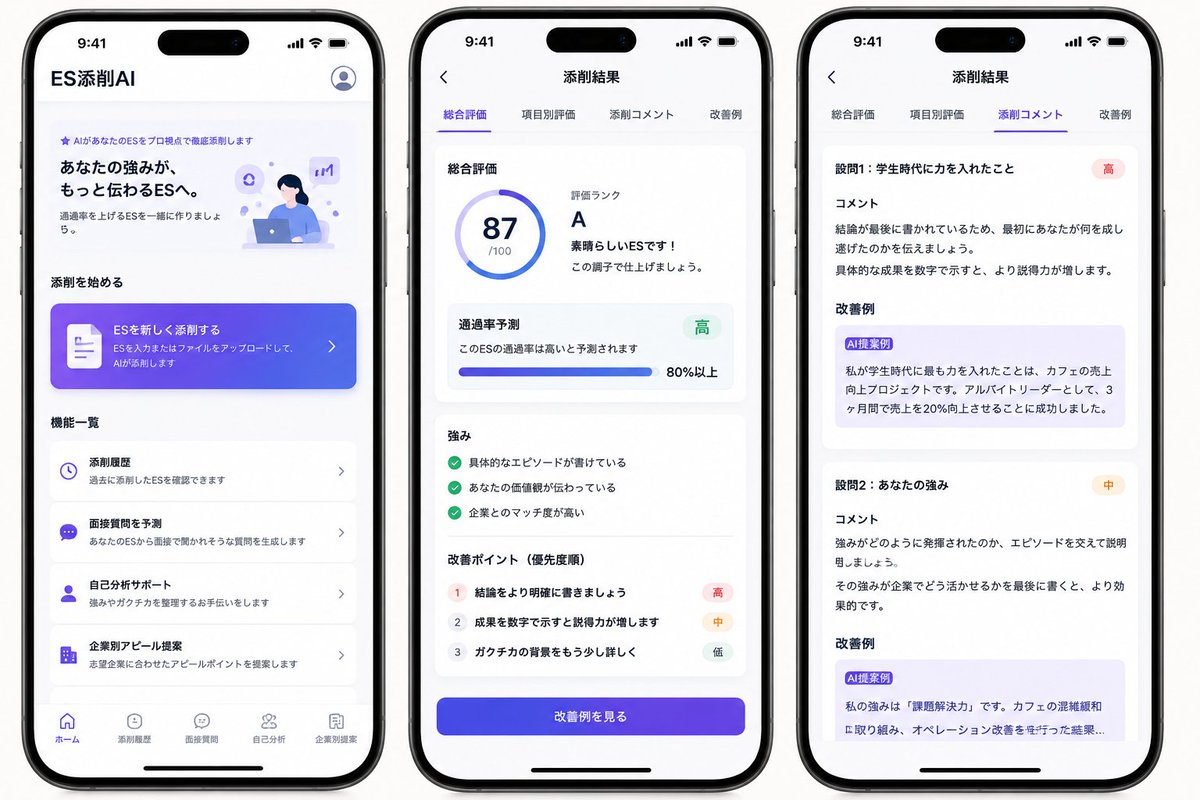
Japanese ES Editing App mockup design preview image
Primary reference image

Japanese ES Editing App Mockup Design

A three-screen iPhone UI concept design for an AI-powered job application (ES) polishing app, suitable for app requirements testing and social media promotion.

Try this prompt

Prompt

Copy-ready prompt

Objective: To provide a product called{argument name="app name" default="ES添削AI"} Create a beautiful marketing mockup for a Japanese mobile app. This app is an AI-powered job application form (ES)/resume editing tool for students. The mockup should display three iPhone screens side-by-side on a clean white background. Canvas: Wide landscape image, approximately 16:9 aspect ratio. Three modern iPhones with black borders, rounded corners, a Dynamic Island at the top, a 9:41 time display in the status bar, and a home screen indicator at the bottom are displayed. The UI design uses bright white cards, soft shadows, rounded corners, and a purple-to-blue gradient accent. The overall style should present a realistic App Store/social media concept mockup, simple and trustworthy. Phone 1, Home Screen: Top left corner title text "ES AI Editing," top right corner circular user/profile icon. The first screen area contains a small purple label "AIがあなたのESをプロViewpointでCompletely Addedします" and a bold main title "あなたの强みが、もっと伝わるESへ" .", supporting copy "Pass rate を上げるESを一丝に作りましょう.", and a vignette of a student working in front of a laptop with a purple AI/chat icon. The section title is "Additional Cutting". Add a large gradient call-to-action (CTA) card with a document icon and the text "ESを新しくadd Cutする" below The small print reads "ESを入力またはファイルをアップロードして, AIがadditchします" and is accompanied by an arrow pointing to the right. Section title "Function List". Displays 4 function list cards: 1) Clock icon, "Add Cutting Guide", "Past Add Cutting Details"; 2) Chat icon, "face-to-face questioningをprediction", "あなたのESからface-to-face communicationででれそうなquestioningをgeneratedします"; 3) Portrait icons, "Analyze it by yourself", "Strong みやガクチカをorganize するお手伝いをします"; 4) Building icon, "Company-specific app proposal", "Proposal for companies with aspirations". The bottom navigation bar contains 5 items: "Home" (selected), "Revision History", "Interview Questions", "Self-Analysis", and "Company-specific Proposal". Phone 2, Results Overview Screen: The top bar has a back arrow and a centered title "Revision Results". Below are 4 tabs: "Comprehensive Evaluation" (selected, with a purple underline), "Item-specific Evaluation", "Revision Comment", and "Improvement Examples". The main white card title is "Comprehensive Evaluation". A circular score ring is displayed on the left, showing {argument name="score" default="87"} And "/100". The text on the right displays "rating rating", large rating.{argument name="grade" default="A"} , "Suharu らしいESです!" and "この声子で世上げましょう.". The next card has the title "Pass Rate Prediction", the text "このESの高いと Prediction されます", a green badge "High", a horizontal progress bar, and "More than 80%". The next card title "strongみ" contains 3 There are green check items: "Specific なエピソードが书けている", "あなたの価䀤観が伝わっている", "Enterprise とのマッチdegree が高い". The next card, titled "Improvement Point (Priority Order)," contains three numbered lines: 1 "Let's write the conclusion clearly" (with a red badge indicating "High"); 2 "The results are shown in numbers and the ability to explain them increases" (with an orange badge indicating "Medium"); 3 "The background of the game is less detailed" (with a gray badge indicating "Low"). At the bottom is a large purple-blue gradient button with the text "See the example of improvement." On phone 3, the detailed comment screen has a back arrow in the top bar and a centered title "Additions and Reductions Results." Repeat the four tabs: "Overall Evaluation," "Item-Specific Evaluation," "Additional Comments" (selected, underlined in purple), and "Improvement Examples." Display two visible polishing sections within the stacked white cards. Section 1 is titled "Question 1: What Did You Achieve During Your Student Days?" (with a red badge reading "High"), subtitled "Comment." The commentary explains that the conclusion should be written last, conveying what the student accomplished and highlighting how quantifiable results enhance persuasiveness. Following this is the subtitle "Improvement Examples," accompanied by a light purple suggestion box labeled "AI-Suggested Case Study," containing rewritten Japanese text about increasing coffee shop sales, serving as a part-time team leader, and increasing sales by 20% within three months. Part 2 is titled "Question 2: Your Strengths" (with an orange "中" badge), subtitled "Comment." The commentary suggests supporting the demonstration of strengths with concrete examples and concludes with how to leverage those strengths within a company. This is followed by the subtitle "Improvement Examples," accompanied by a light purple suggestion box labeled "AI-Suggested Case." The content includes a rewritten example beginning with "私の强みは『问题解决力』です。" and mentioning coffee shop congestion and operational improvements. The bottom is slightly cropped, creating a scrollable effect. Visual Style: Japanese iOS App UI, San Francisco/Noto Sans font, purple and indigo gradient, subtle pale purple highlights, blue accent icons, soft card shadows, clean alignment, and ample white space. Realistic mobile hardware shadows and spacing are used. The text remains clear and legible, and largely consistent with the designated Japanese tags. Constraints: Show 3 phones. The first phone should have exactly 4 feature cards and 5 bottom navigation items. Each results screen should have exactly 4 tabs, exactly 3 strengths, exactly 3 areas for improvement, and exactly 2 visible comment sections. Do not add extra screens, watermarks, logos, or decorative clutter.

Prompt variables

Editable argument placeholders found in the prompt, with their default values.

3
Variable
app name
Default
ES添削AI
Variable
score
Default
87
Variable
grade
Default
A

More cases in this category

Prioritized by category, input mode compatibility, quality, and lower risk.

6

Reuse and source notes

Use this prompt safely after previewing the case.

  1. 1.Copy the prompt or open it directly in Dovoo with the generation button.
  2. 2.Adjust variables, aspect ratio, and reference images for your own use case.
  3. 3.Before publishing or paid usage, verify source rights, attribution requirements, and brand or likeness risks.

Can I use this prompt commercially?

Commercial-use status is unknown. Review the original source, license, brand constraints, and legal requirements before paid usage.

Where does this case come from?

This case is imported from YouMind OpenLab awesome-gpt-image-2; keep attribution visible and check the source URL before reuse.

Japanese ES Image Editing App Mockup Design for GPT Image 2 | Image Prompt Gallery