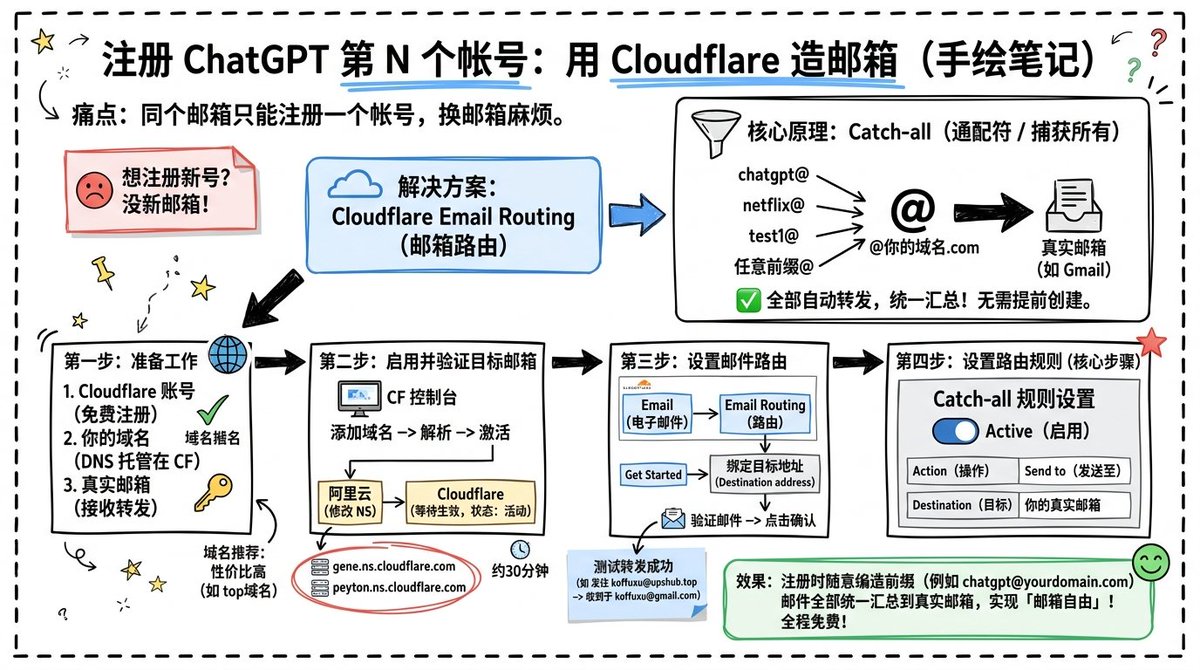
Cloudflare Catch-All Email Routing Infographic
A hand-drawn Chinese whiteboard infographic explaining Cloudflare Email Routing catch-all setup for creating flexible ChatGPT signup email aliases.
This is a GPT Image 2 prompt case for 插画艺术. Use the copy-ready prompt below to generate similar visuals, and review Awesome GPT Image 2 Prompts attribution plus commercial-use rights before reuse.
Prompt
Copy-ready prompt
目标:制作一张横版手绘笔记本风格的Chinese信息图,解释如何通过使用 Cloudflare Email Routing 创建 Catch-all 邮箱别名来注册多个 ChatGPT 账号。

画布:宽屏 16:9 白板页面,干净的米白色背景,周围环绕着粗黑色的虚线圆角边框。使用随意的马克笔手绘风格,线条略显不完美,配有涂鸦箭头、星星、问号、图钉和小型表情图标。

标题与简介:在顶部居中位置,书写加粗标题 {argument name="headline text" default="注册 ChatGPT 第 N 个账号:用 Cloudflare 造邮箱(手绘笔记)"}。用蓝色下划线标注“Cloudflare”。在其下方左侧,书写痛点文案:“痛点:同个邮箱只能注册一个账号,换邮箱麻烦。”在标题附近添加一个小巧的弯曲箭头涂鸦和星星。

整体布局:使用 7 个主要内容框/卡片,并辅以装饰性涂鸦。按从左到右的流程排列,并用粗黑色箭头连接各部分。这 7 个卡片分别是:1 个痛点卡片、1 个解决方案卡片、1 个核心原理卡片以及 4 个带编号的步骤卡片。

卡片 1(痛点卡片):左上角一个红色轮廓的便利贴框,配有一个悲伤的红色表情图标。文字:“想注册新号?没新邮箱!”使其看起来像一张折角的便签。

卡片 2(解决方案卡片):中上方一个蓝色圆角矩形,配有一个蓝色云朵图标。文字:“解决方案:Cloudflare Email Routing(邮箱路由)”。画一个蓝色箭头指向核心原理框。

卡片 3(核心原理卡片):右上角一个黑色轮廓的大型圆角矩形。标题文字:“核心原理:Catch-all(通配符 / 捕获所有)”。包含一个漏斗图标。左侧展示 4 个示例传入别名:“chatgpt@”、“netflix@”、“test1@”以及“任意前缀@”。画出箭头从这四个别名指向一个巨大的“@”符号和“@你的域名.com”,然后画一条粗黑色箭头指向一个标注为“真实邮箱(如 Gmail)”的邮箱图标。底部配有绿色对勾图标的文案:“全部自动转发,统一汇总!无需提前创建。”

底部步骤卡片:使用 4 个带编号的方框。

步骤 1 卡片(左下):标题“第一步:准备工作”。包含 3 个带编号的要求:“1. Cloudflare 账号(免费注册)”、“2. 你的域名(DNS 托管在 CF)”、“3. 真实邮箱(接收转发)”。添加一个地球图标、一个绿色对勾和一个黄色钥匙图标。下方添加小字:“域名推荐:性价比高(如 top 域名)”。

步骤 2 卡片(中左下):标题“第二步:启用并验证目标邮箱”。包含一个标注为“CF 控制台”的小型电脑图标。流程文字:“添加域名 → 解析 → 激活”。画一个箭头指向下方的一个小型 DNS 名称服务器面板,分为两列:左侧“阿里云(修改 NS)”,右侧“Cloudflare(等待生效,状态:活动)”。在卡片下方,画一个红色圈出的名称服务器列表,包含 2 个条目:“gene.ns.cloudflare.com”和“peyton.ns.cloudflare.com”。添加一个小闹钟图标和文字“约 30 分钟”。

步骤 3 卡片(中右下):标题“第三步:设置邮件路由”。展示一个小型 Cloudflare UI 模拟图,包含 2 个顶部标签/方框:“Email(电子邮件)”和“Email Routing(路由)”。包含一个指向“绑定目标地址(Destination address)”的小型“Get Started”按钮。底部添加一个信封图标和文字:“验证邮件 → 点击确认”。在此卡片下方放置一个蓝色状态备注,标题为“测试转发成功”,并用两条箭头线展示别名转发到 Gmail 地址的过程。

步骤 4 卡片(右下):标题“第四步:设置路由规则(核心步骤)”。展示一个标题为“Catch-all 规则设置”的 UI 面板。包含一个标注为“Active(启用)”的蓝色开关。包含一个两行表格,带有表头和值:第一行“Action(操作)”对应“Send to(发送至)”;第二行“Destination(目标)”对应“你的真实邮箱”。在角落处添加一颗红星。

最终结果框:在右下角步骤 4 的下方,添加一个带有笑脸图标的绿色圆角矩形。文字:“效果:注册时随意编造前缀(例如 [email protected])邮件全部统一汇总到真实邮箱,实现「邮箱自由」!全程免费!”

视觉风格:手写Chinese排版,粗黑色马克笔轮廓,简单的矢量涂鸦,蓝/红/绿/黄强调色,非正式的课堂笔记感。保持所有箭头加粗且具有指向性,带有轻微的手绘不完美感。

约束:整张信息图必须按要求使用Chinese,不使用照片级真实感,不使用 3D 渲染,不添加水印,不超出 7 个卡片和最终结果框的范畴,并确保文字清晰易读。
Prompt variables
Editable argument placeholders found in the prompt, with their default values.
More cases in this category
Prioritized by category, input mode compatibility, quality, and lower risk.



Reuse and source notes
Use this prompt safely after previewing the case.
- 1.Copy the prompt or open it directly in Dovoo with the generation button.
- 2.Adjust variables, aspect ratio, and reference images for your own use case.
- 3.Before publishing or paid usage, verify source rights, attribution requirements, and brand or likeness risks.
Can I use this prompt commercially?
Commercial-use status is allowed. Review the original source, license, brand constraints, and legal requirements before paid usage.
Where does this case come from?
This case is imported from Awesome GPT Image 2 Prompts; keep attribution visible and check the source URL before reuse.