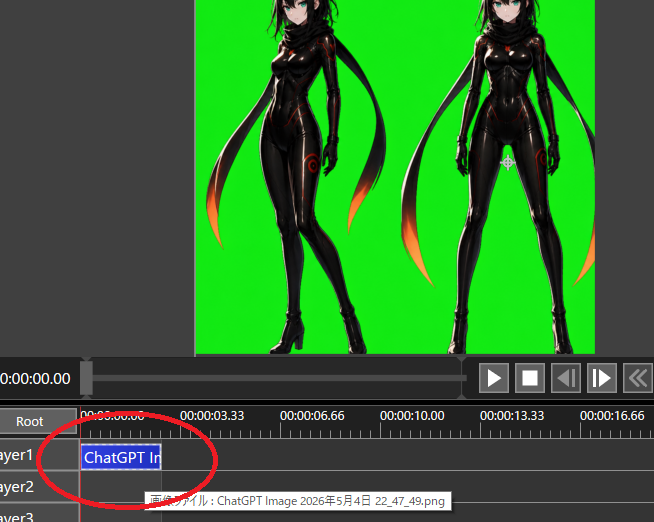
Chroma Key Video Editor Screenshot
Creates a dark video editing interface screenshot showing two anime characters on a green screen with a circled timeline clip for transparency workflow tutorials.
This is a GPT Image 2 prompt case for 其他灵感. Use the copy-ready prompt below to generate similar visuals, and review Awesome GPT Image 2 Prompts attribution plus commercial-use rights before reuse.
Prompt
Copy-ready prompt
目标:创建一个视频编辑/合成工作区的截图风格图像,演示用于透明度处理的 Chroma Key 准备工作。

画布:654×522 像素横向截图,深灰色软件界面,无浏览器边框或桌面框架。主预览区占据上半部分,时间轴占据下半部分。

预览区域:居中放置一个明亮的纯绿色 Chroma Key 背景矩形。在背景上放置 2 个全身动漫赛博忍者女性作为导入的图像素材:左侧人物为四分之三侧身姿势,一条腿向前交叉;右侧人物为正面站立,双腿分开。两人均拥有 {argument name="hair color" default="black"} 头发、苍白皮肤、青色眼睛、带有细微红/橙色发光接缝的亮黑色紧身衣、黑色手套、高跟靴子,以及身后拖曳的长黑色围巾/丝带,末端带有橙红色光芒。将两人的头顶在预览区域顶部边缘处略微裁剪,以匹配真实的编辑器视口。在绿色预览区外留出深灰色边距。

界面布局:在预览下方,显示播放栏和传输控件。右侧显示 6 个可见的传输按钮:播放三角形、停止方形、后退/前进单帧按钮、双箭头快退按钮,以及最右侧部分可见的额外控件。在时间显示左侧,显示白色时间码文本 {argument name="current timecode" default="0:00:00.00"}。使用小型白色 UI 文字和灰色面板。

时间轴:显示一个带有时间标签的标尺,包含 5 个可见标签:0:00:00.00、0:00:03.33、0:00:06.66、0:00:10.00 和 0:00:13.33,最右侧还有一个部分可见的 0:00:16.66。显示 3 个标记为 Layer1、Layer2 和 Layer3 的图层行,上方有一个 Root 行。在靠近 0:00:00.00 的起始处添加一个红色垂直播放头。在 Layer1 上放置一个从起始处开始的蓝色选中片段,标记为 {argument name="clip label" default="ChatGPT Im"}。在 Layer1 片段和时间轴起始处绘制一个粗的手绘红色椭圆/圆圈,如同标注点击位置。在 Layer2 附近显示一个小提示框,包含以 {argument name="tooltip text" default="画像ファイル : ChatGPT Image 2026年5月4日 22_47_49.png"} 开头的日语文本。

视觉风格:逼真的低分辨率软件截图,UI 元素清晰,带有轻微锯齿,功能性深色主题,无装饰性边框。动漫素材应看起来像是嵌入编辑器中的精致 AI 生成角色艺术,而非扁平图标。

约束:保持 Chroma Key 绿色纯净且鲜艳。不要添加额外角色、额外片段或额外的标注圆圈。不要包含水印。保留截图裁剪效果,使右侧控件和最右侧的时间标签部分被切断。
Prompt variables
Editable argument placeholders found in the prompt, with their default values.
More cases in this category
Prioritized by category, input mode compatibility, quality, and lower risk.

Reuse and source notes
Use this prompt safely after previewing the case.
- 1.Copy the prompt or open it directly in Dovoo with the generation button.
- 2.Adjust variables, aspect ratio, and reference images for your own use case.
- 3.Before publishing or paid usage, verify source rights, attribution requirements, and brand or likeness risks.
Can I use this prompt commercially?
Commercial-use status is allowed. Review the original source, license, brand constraints, and legal requirements before paid usage.
Where does this case come from?
This case is imported from Awesome GPT Image 2 Prompts; keep attribution visible and check the source URL before reuse.