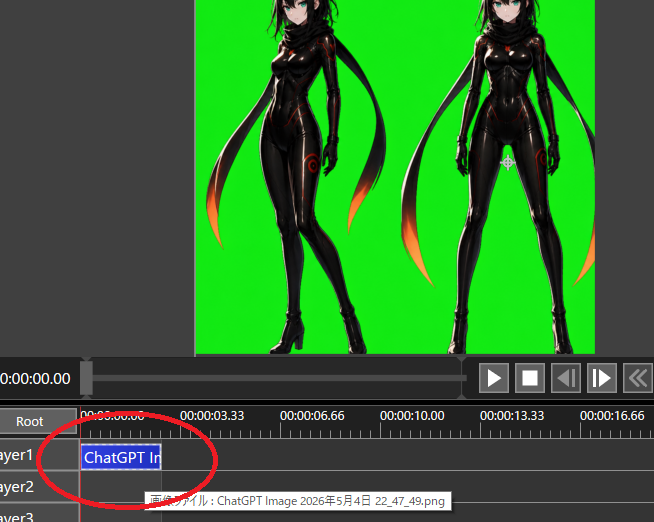
Chroma Key Video Editor Screenshot
Creates a dark video editing interface screenshot showing two anime characters on a green screen with a circled timeline clip for transparency workflow tutorials.
这是一个用于 其他灵感 的 GPT Image 2 提示词案例。你可以复制下方 prompt 生成相似图片;商用前请复核 Awesome GPT Image 2 Prompts 来源归因和原始权利。
需要完整提示词集合?请使用 其他灵感 主题页获取更多同类示例,或打开 GPT Image 2 提示词库 查看完整示例索引、可复用结构和来源归因。
提示词
可复制提示词
目标:创建一个视频编辑/合成工作区的截图风格图像,演示用于透明度处理的 Chroma Key 准备工作。

画布:654×522 像素横向截图,深灰色软件界面,无浏览器边框或桌面框架。主预览区占据上半部分,时间轴占据下半部分。

预览区域:居中放置一个明亮的纯绿色 Chroma Key 背景矩形。在背景上放置 2 个全身动漫赛博忍者女性作为导入的图像素材:左侧人物为四分之三侧身姿势,一条腿向前交叉;右侧人物为正面站立,双腿分开。两人均拥有 {argument name="hair color" default="黑色"} 头发、苍白皮肤、青色眼睛、带有细微红/橙色发光接缝的亮黑色紧身衣、黑色手套、高跟靴子,以及身后拖曳的长黑色围巾/丝带,末端带有橙红色光芒。将两人的头顶在预览区域顶部边缘处略微裁剪,以匹配真实的编辑器视口。在绿色预览区外留出深灰色边距。

界面布局:在预览下方,显示播放栏和传输控件。右侧显示 6 个可见的传输按钮:播放三角形、停止方形、后退/前进单帧按钮、双箭头快退按钮,以及最右侧部分可见的额外控件。在时间显示左侧,显示白色时间码文本 {argument name="current timecode" default="0:00:00.00"}。使用小型白色 UI 文字和灰色面板。

时间轴:显示一个带有时间标签的标尺,包含 5 个可见标签:0:00:00.00、0:00:03.33、0:00:06.66、0:00:10.00 和 0:00:13.33,最右侧还有一个部分可见的 0:00:16.66。显示 3 个标记为 Layer1、Layer2 和 Layer3 的图层行,上方有一个 Root 行。在靠近 0:00:00.00 的起始处添加一个红色垂直播放头。在 Layer1 上放置一个从起始处开始的蓝色选中片段,标记为 {argument name="clip label" default="ChatGPT Im"}。在 Layer1 片段和时间轴起始处绘制一个粗的手绘红色椭圆/圆圈,如同标注点击位置。在 Layer2 附近显示一个小提示框,包含以 {argument name="tooltip text" default="画像ファイル : ChatGPT Image 2026年5月4日 22_47_49.png"} 开头的日语文本。

视觉风格:逼真的低分辨率软件截图,UI 元素清晰,带有轻微锯齿,功能性深色主题,无装饰性边框。动漫素材应看起来像是嵌入编辑器中的精致 AI 生成角色艺术,而非扁平图标。

约束:保持 Chroma Key 绿色纯净且鲜艳。不要添加额外角色、额外片段或额外的标注圆圈。不要包含水印。保留截图裁剪效果,使右侧控件和最右侧的时间标签部分被切断。
提示词变量
从提示词中识别到的可编辑 argument 占位符及默认值。
变量
hair color
默认值
black
变量
current timecode
默认值
0:00:00.00
变量
clip label
默认值
ChatGPT Im
变量
tooltip text
默认值
Image file: ChatGPT Image May 4, 2026 22_47_49.png
同分类案例
优先推荐同分类、同输入模式且风险更低的案例。

复用与来源说明
看完案例后,再安全复用这个提示词。
- 1.复制 prompt,或点击生成入口在 Dovoo 中直接打开。
- 2.按你的用途调整变量、画面比例和参考图。
- 3.发布或商用前,复核来源权利、归因要求以及品牌、肖像或版权风险。
这个提示词可以商用吗?
当前商业使用状态为 allowed。付费或公开使用前,请复核原始来源、许可、品牌限制和法务要求。
这个案例来自哪里?
该案例导入自 Awesome GPT Image 2 Prompts;复用时请保留来源归因,并打开来源 URL 检查最新授权信息。