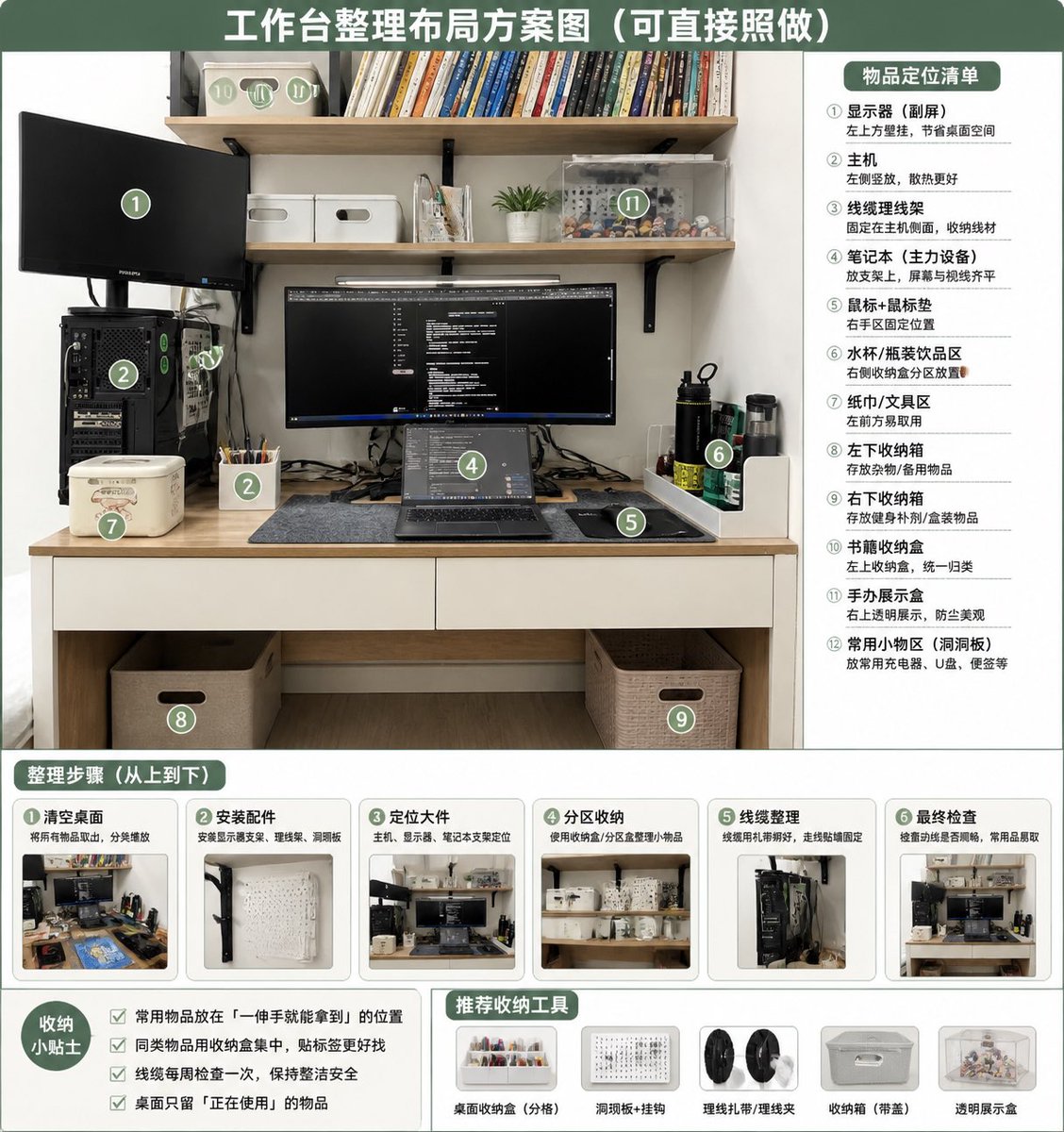
辦公桌組織佈局資訊圖
將雜亂的桌面照片變成整潔的、帶編號的整理計劃圖,其中包含區域、步驟、技巧和推薦的收納工具。
這是一個平面設計和海報設計的GPT Image 2範例。請使用下方可直接使用的提示資訊產生類似的視覺素材,並在重複使用前查看Awesome GPT Image 2 Prompts署名和商業用途授權資訊。
需要完整的提示符號集?請使用 平面設計和海報設計 主題中心提供更多相關範例,或打開 GPT Image 2 提示庫 有關完整範例索引、可重複使用結構和來源歸屬的資訊。
Free 1K preview
Generate one preview image instantly, no sign-up required.
Free text preview doesn’t preserve reference-image consistency.
2191/4000
提示詞
可直接複製的提示
Using REFERENCE_0 as the source photo, create a clean, realistic “after organization” desktop layout plan infographic. Keep the same desk, shelves, monitor/laptop setup, PC tower position, and overall room viewpoint, but tidy the workspace: route cables neatly, clear the desktop, place items into defined storage zones, add matching storage boxes/baskets, a pegboard/accessory area, pen cup, book storage box, transparent display case, and dedicated bottle/tissue/small-tool areas. Use a green-and-white instructional poster style with a large top headline: {argument name="headline text" default="Workstation Organization Layout Plan (Can be directly followed)"}. Overlay 12 green circular numbered markers on the organized photo and include a right-side panel titled {argument name="right panel title" default="Item Placement List"} listing exactly 12 labeled zones: ① monitor / secondary screen, ② main PC tower, ③ cable management, ④ laptop work area, ⑤ mouse pad / mouse area, ⑥ water cup / bottle area, ⑦ tissue / tool area, ⑧ left under-desk storage box, ⑨ right under-desk storage box, ⑩ book storage box, ⑪ figure display area, ⑫ common small-items area / pegboard. Add a bottom section titled {argument name="steps title" default="Organization Steps (From top to bottom)"} with exactly 6 step cards, each containing a small before/after-style thumbnail and short Chinese labels: ① clear desktop, ② install accessories, ③ position large items, ④ partition storage, ⑤ cable management, ⑥ final inspection. Add a bottom-left tips box titled {argument name="tips title" default="Storage Tips"} with exactly 4 checkbox tips about putting frequently used items within one-hand reach, grouping similar items, checking cables weekly, and keeping only currently used items on the desk. Add a bottom-center/right recommendations row titled {argument name="tools title" default="Recommended Storage Tools"} with exactly 5 product icons: desktop organizer tray, pegboard + hooks, cable ties / cable clips, storage box with handle, transparent display box. Make the design neat, practical, bright, and directly actionable, like a home-office organization guide derived from the original photo.提示變數
提示符號中可編輯的參數佔位符及其預設值。
多變的
headline text
預設
Workstation Organization Layout Plan (Can be directly followed)
多變的
right panel title
預設
Item Placement List
多變的
steps title
預設
Organization Steps (From top to bottom)
多變的
tips title
預設
Storage Tips
多變的
tools title
預設
Recommended Storage Tools
Best for
- - 平面設計和海報設計 visual exploration
- - Image generation and reference-image edits
- - Reusable briefs that keep source attribution visible
Change these parts
- - Subject, product, character, or scene
- - Aspect ratio, camera, lighting, and background
- - Brand, text, color, and output constraints
Recommended model and settings
- - Model: gpt-image-2
- - Input mode: 圖生圖
- - Aspect ratio: source
- - Commercial status: review original source
How to use this prompt
- 1. Copy the prompt and preserve its structure for the first test.
- 2. Replace the subject, context, and publishing channel.
- 3. Change one camera, lighting, or style variable per iteration.
- 4. Inspect the output, source, text, and rights before reuse.
Limitations, source, and reuse cautions
- - Generated output is an editable draft, not factual, legal, or rights evidence.
- - Review the linked source, people, brands, logos, text, and third-party media before commercial use.
內容來自Awesome GPT Image 2 Prompts 。必須註明出處。商業用途狀態為allowed ;付費使用前請查看來源版權資訊。
此類案例更多
按類別、輸入模式相容性、品質和低風險進行優先排序。




重用和來源註釋
預覽案例後,請謹慎使用此提示。
- 1.複製提示或直接在 Dovoo 中使用生成按鈕開啟提示。
- 2.根據您的實際使用情況調整變數、寬高比和參考影像。
- 3.發布或付費使用前,請確認版權、署名要求以及品牌或肖像權風險。