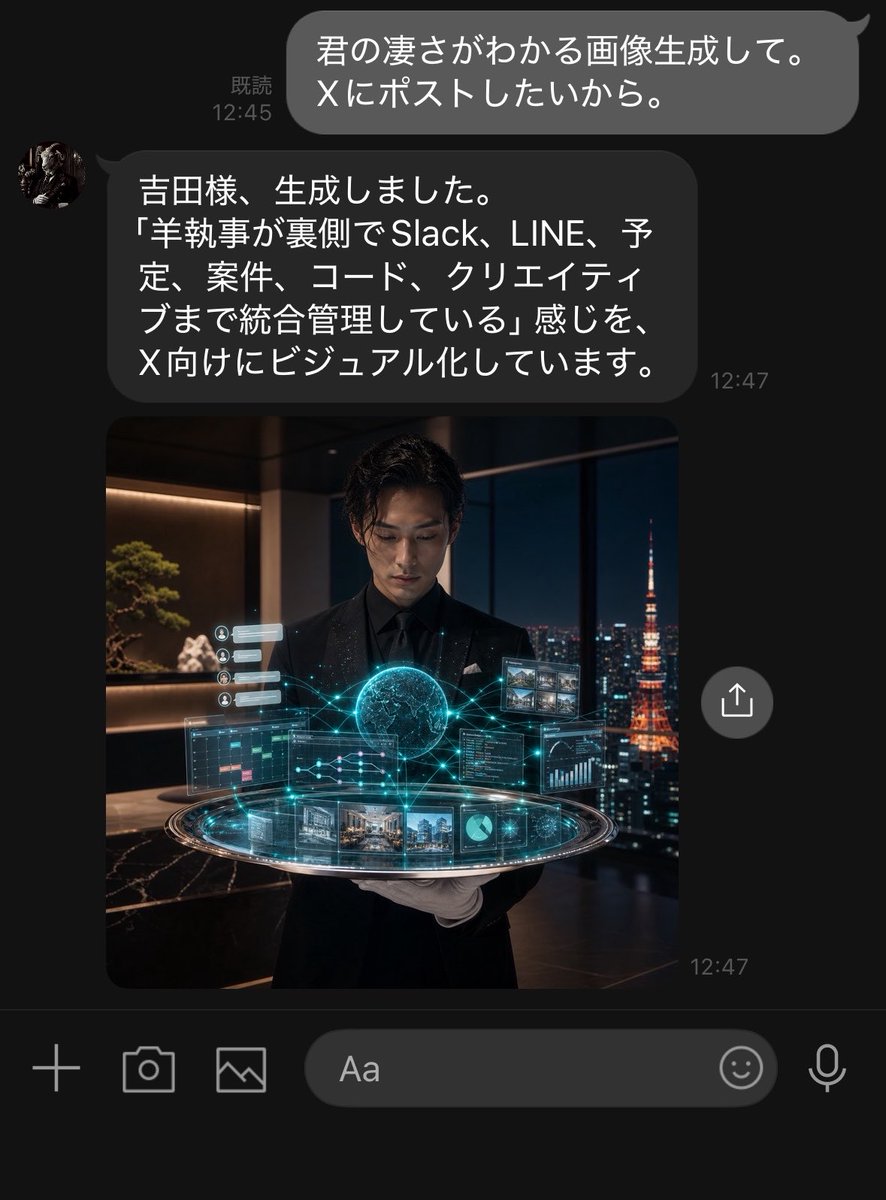
Скриншот чата Dark LINE AI Assistant
Генерирует реалистичный скриншот чата LINE в темном режиме, где AI-ассистент возвращает кинематографическое изображение футуристического дворецкого для публикации в социальных сетях.
Это пример использования шаблона GPT Image 2 для Другие источники вдохновения . Используйте приведенный ниже шаблон, готовый к копированию, чтобы создать аналогичные визуальные элементы, и перед повторным использованием проверьте указание авторства Awesome GPT Image 2 Prompts и права на коммерческое использование.
Free 1K preview
Generate one preview image instantly, no sign-up required.
Промпт
Подсказка для копирования
Objective: Create a realistic dark mode LINE chat screenshot showing an AI assistant replying to a user and returning a generated image.

Canvas: Vertical smartphone screenshot, approximately 768x1008 pixels in size, with a black/deep charcoal gray background, cropped to resemble a native chat application interface. Use LINE-style fonts and spacing.

Layout: Display 2 chat messages and 1 embedded image preview. Place a rounded gray bubble in the upper right corner containing white Japanese text, with “Read” and the time on the left. Below that, place a left-aligned dark gray rounded bubble with a circular avatar on the left and Japanese text inside, with a timestamp in the lower right corner. Directly below the assistant’s message, display a large square image preview aligned with the message column. Float a circular share/upload button to the right of the image preview. The bottom should include the LINE input toolbar, showing 6 controls: a plus icon, a camera icon, a photo/image icon, a rounded text input box labeled “Aa”, a smiley face icon, and a microphone icon.

Text Content: The user’s bubble should display {argument name="user message" default="君の凄さがわかる画像生成して。\nXにポストしたいから。"}. Display “Read 12:45”. The assistant’s reply bubble should display {argument name="assistant message" default="吉田様、生成しました。\n「羊執事が裏側でSlack、LINE、予定、案件、コード、クリエイティブまで統合管理している」感じを、\nX向けにビジュアル化しています。"}. The assistant’s message timestamp should display “12:47”, and a small “12:47” timestamp should also appear in the lower right corner of the image preview.

Embedded Image Details: The image preview is a cinematic, photorealistic square scene featuring a young Japanese male butler wearing a black suit, black shirt, and white gloves, standing in a luxurious high-rise office at night. He is holding or displaying a glowing, futuristic holographic control platform. The hologram contains 9 visible UI elements: 1 glowing central sphere/brain-like orb, 1 circular platform ring, 1 calendar/task panel on the left, 1 code/dashboard panel on the right, 1 small image thumbnail grid in the upper right corner, 1 row of project/image cards at the bottom, 1 small pie chart tile, 1 small line graph/data tile, and 1 vertically stacked row of small notification cards on the left. Cyan network lines connect these elements. Through the floor-to-ceiling windows behind him, show the nighttime Tokyo skyline, with the orange-lit Tokyo Tower visible on the right. Interior details include warm shelf lighting, bonsai plants, dark marble surfaces, and a luxurious office atmosphere.

Visual Style: Highly realistic iPhone screenshot aesthetic, dark mode UI, fine anti-aliasing, rounded bubbles, white Japanese text, precise chat spacing, cinematic embedded image with cyan holographic effects and warm nighttime lighting. The assistant’s avatar should be a small circular profile photo resembling a dark classical sculpture or butler portrait.

Constraints: Keep all visible UI text clear and readable, and strictly display the specified Japanese content. Do not add extra messages, buttons, watermarks, application title bars, or notification bars. The screenshot should present a genuine LINE conversation feel, indicating that the AI secretary has generated and returned the image.
Переменные подсказки
Редактируемые заполнители аргументов, найденные в подсказке, с их значениями по умолчанию.
Best for
- - Другие источники вдохновения visual exploration
- - Image generation and reference-image edits
- - Reusable briefs that keep source attribution visible
Change these parts
- - Subject, product, character, or scene
- - Aspect ratio, camera, lighting, and background
- - Brand, text, color, and output constraints
Recommended model and settings
- - Model: gpt-image-2
- - Input mode: Текст в изображение
- - Aspect ratio: source
- - Commercial status: review original source
How to use this prompt
- 1. Copy the prompt and preserve its structure for the first test.
- 2. Replace the subject, context, and publishing channel.
- 3. Change one camera, lighting, or style variable per iteration.
- 4. Inspect the output, source, text, and rights before reuse.
Limitations, source, and reuse cautions
- - Generated output is an editable draft, not factual, legal, or rights evidence.
- - Review the linked source, people, brands, logos, text, and third-party media before commercial use.
Больше случаев в этой категории
Приоритет отдается категориям, совместимости с режимами ввода, качеству и низкому уровню риска.
Примечания по повторному использованию и источникам
Используйте это подсказку безопасно после предварительного просмотра дела.
- 1.Скопируйте подсказку или откройте ее непосредственно в Dovoo с помощью кнопки генерации.
- 2.Настройте переменные, соотношение сторон и эталонные изображения в соответствии с вашими потребностями.
- 3.Перед публикацией или платным использованием проверьте права на источник, требования к указанию авторства, а также риски, связанные с использованием товарного знака или изображения.