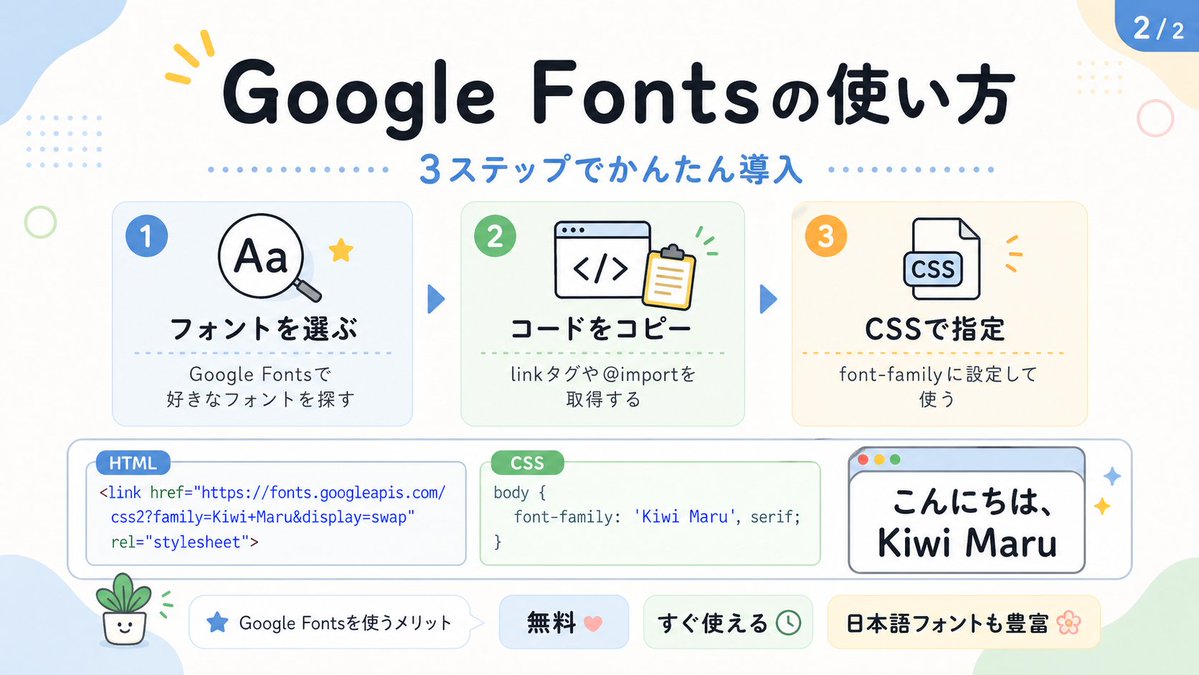
귀여운 구글 폰트 사용법 인포그래픽
이 프롬프트는 소셜 미디어 캐러셀이나 기술 튜토리얼 게시물에 적합한, 구글 폰트 설정 방법을 3단계로 설명하는 파스텔 톤의 일본어 교육용 인포그래픽 슬라이드를 생성합니다.
이것은 그래픽 및 포스터 에 대한 GPT Image 2 프롬프트 사례입니다. 아래의 복사 가능한 프롬프트를 사용하여 유사한 시각 자료를 생성하고, 재사용하기 전에 Awesome GPT Image 2 Prompts 의 저작자 표시 및 상업적 사용 권한을 검토하십시오.
전체 프롬프트 세트가 필요하신가요? 다음을 사용하세요. 그래픽 및 포스터 더 많은 관련 예시를 보려면 주제 허브를 열거나 다음을 열어보세요. GPT Image 2 프롬프트 카탈로그 전체 예제 색인, 재사용 가능한 구조 및 출처 표기는 다음을 참조하십시오.
Free 1K preview
Generate one preview image instantly, no sign-up required.
3261/4000
프롬프트
복사 준비 프롬프트
Create a cute pastel Japanese infographic slide with a clean white background and soft rounded abstract corner blobs in pale blue, cream, and light green. The design is friendly, educational, and modern, with thick rounded sans-serif Japanese typography, subtle drop shadows, thin gray outlines, dotted divider accents, and small decorative doodles. At the top center, place a large bold headline in dark navy that reads "Google Fontsの使い方". Directly below it, add a blue subheadline reading "3ステップでかんたん導入" with a horizontal row of small blue dots on both sides. In the top right corner, add a rounded blue page badge that reads "2/2".

Arrange 3 rounded rectangular step cards across the upper middle row, evenly spaced left to right, each with a pale tinted background, soft border, and a colored circular number badge in the upper left. Card 1 has a pale blue background and a blue badge with "1". Inside, show a simple magnifying glass icon over the letters "Aa" plus a small yellow star accent. The bold title reads "フォントを選ぶ" and the smaller text below reads "Google Fontsで
好きなフォントを探す". Card 2 has a pale green background and a green badge with "2". Inside, show a browser window icon with code brackets "</>" and a clipboard, plus tiny green motion marks. The bold title reads "コードをコピー" and the smaller text below reads "linkタグや@importを
取得する". Card 3 has a pale cream background and an orange badge with "3". Inside, show a document icon labeled "CSS" with small orange accent marks. The bold title reads "CSSで指定" and the smaller text below reads "font-family に設定して
使う". Place 2 medium blue triangular arrows between the 3 cards to show progression.

Across the lower middle, create 3 horizontally aligned demo boxes. The left box is a rounded white code panel with a small blue tab label reading "HTML". Inside, display this code in blue text exactly across 3 lines: "<link href=\"https://fonts.googleapis.com/"
"css2?family=Kiwi+Maru&display=swap"
"rel=\"stylesheet\">". The center box is a rounded white code panel with a green tab label reading "CSS". Inside, display dark text exactly as: "body {"
"    font-family: 'Kiwi Maru', serif;"
"}". The right box is a rounded white mock browser window with a pale blue title bar and 3 tiny circular window buttons at top left in red, yellow, and green. Inside, show large Japanese sample text in black reading "こんにちは、
Kiwi Maru" in a cute rounded handwritten-style font. Add 2 small sparkle accents to the right of this browser window.

At the bottom, place 4 pill-shaped badges from left to right. Badge 1 is white with a small blue star icon and text "Google Fontsを使うメリット". Badge 2 is pale blue with bold text "無料" followed by a pink heart. Badge 3 is pale green with bold text "すぐ使える" followed by a small clock icon. Badge 4 is pale yellow with bold text "日本語フォントも豊富" followed by a flower icon.

Add 4 extra decorative elements around the canvas: a yellow 3-stroke sparkle near the top left of the headline, a pale blue dotted square grid in the upper left background, a thin light green ring on the left side, and a tiny smiling potted plant illustration in the lower left corner. Keep the whole composition flat vector-like, crisp, cute, and highly legible, in a social-media educational carousel style.
Best for
- - 그래픽 및 포스터 visual exploration
- - Image generation and reference-image edits
- - Reusable briefs that keep source attribution visible
Change these parts
- - Subject, product, character, or scene
- - Aspect ratio, camera, lighting, and background
- - Brand, text, color, and output constraints
Recommended model and settings
- - Model: gpt-image-2
- - Input mode: 텍스트 to 이미지
- - Aspect ratio: source
- - Commercial status: review original source
How to use this prompt
- 1. Copy the prompt and preserve its structure for the first test.
- 2. Replace the subject, context, and publishing channel.
- 3. Change one camera, lighting, or style variable per iteration.
- 4. Inspect the output, source, text, and rights before reuse.
Limitations, source, and reuse cautions
- - Generated output is an editable draft, not factual, legal, or rights evidence.
- - Review the linked source, people, brands, logos, text, and third-party media before commercial use.
Awesome GPT Image 2 Prompts 에서 가져왔습니다. 출처 표기가 필요합니다. 상업적 이용 가능 여부는 allowed 입니다. 유료 사용 전에 원저작권 정보를 확인하세요.
이 범주에 속하는 더 많은 사례
범주, 입력 방식 호환성, 품질 및 위험도에 따라 우선순위가 정해집니다.




재사용 및 출처 참고 사항
사례를 미리 확인한 후 이 안내 메시지를 안전하게 사용하십시오.
- 1.프롬프트를 복사하거나 Dovoo의 생성 버튼을 사용하여 직접 엽니다.
- 2.사용 사례에 맞게 변수, 화면 비율 및 참조 이미지를 조정하십시오.
- 3.출판 또는 유료 사용 전에 저작권, 출처 표기 요건 및 브랜드 또는 초상권 관련 위험을 확인하십시오.