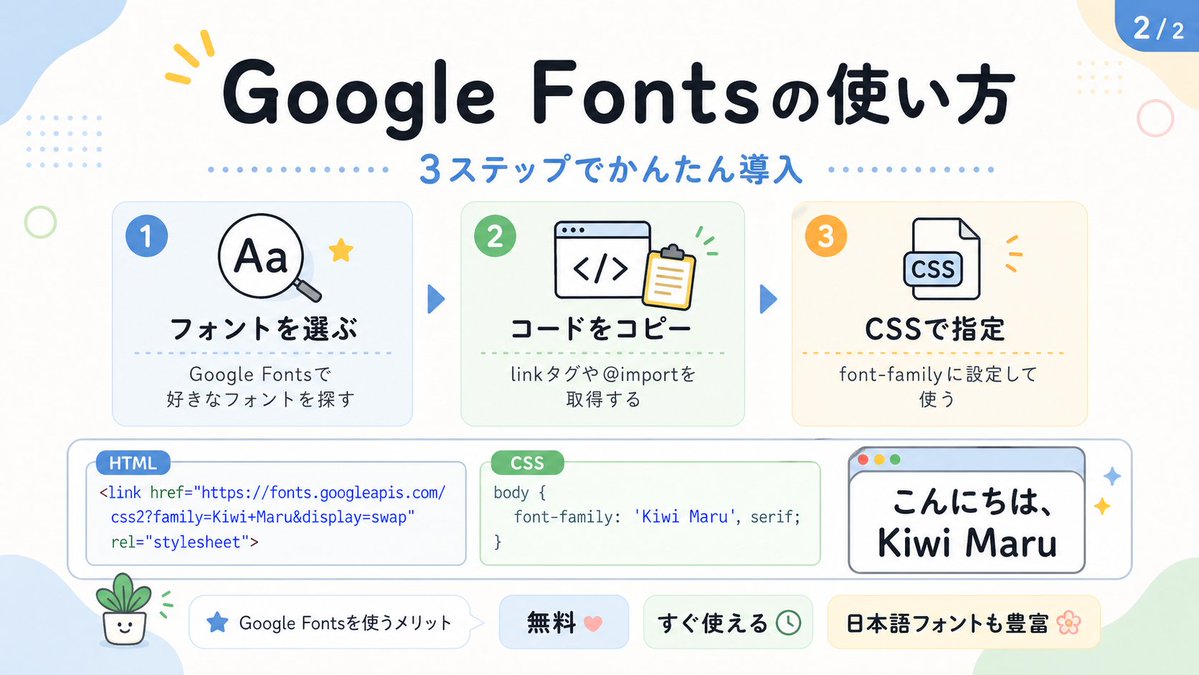
かわいいGoogleフォントチュートリアルインフォグラフィック
このプロンプトは、Google Fontsの設定方法を3つのステップで説明するパステル調の日本語教育インフォグラフィックのスライドを生成します。ソーシャルメディアのカルーセルや技術チュートリアル記事に適しています。
これはグラフィック&ポスター向けのGPT Image 2プロンプトケースです。以下のコピー可能なプロンプトを使用して同様のビジュアルを生成し、再利用する前にAwesome GPT Image 2 Prompts帰属表示と商用利用権を確認してください。
プロンプトセット全体が必要ですか? グラフィック&ポスター 関連する例をもっと見るにはトピックハブを開くか、 GPT Image 2 プロンプトカタログ 完全な例の索引、再利用可能な構造、および出典の明記については、こちらをご覧ください。
Free 1K preview
Generate one preview image instantly, no sign-up required.
3261/4000
プロンプト
コピー準備完了プロンプト
Create a cute pastel Japanese infographic slide with a clean white background and soft rounded abstract corner blobs in pale blue, cream, and light green. The design is friendly, educational, and modern, with thick rounded sans-serif Japanese typography, subtle drop shadows, thin gray outlines, dotted divider accents, and small decorative doodles. At the top center, place a large bold headline in dark navy that reads "Google Fontsの使い方". Directly below it, add a blue subheadline reading "3ステップでかんたん導入" with a horizontal row of small blue dots on both sides. In the top right corner, add a rounded blue page badge that reads "2/2".

Arrange 3 rounded rectangular step cards across the upper middle row, evenly spaced left to right, each with a pale tinted background, soft border, and a colored circular number badge in the upper left. Card 1 has a pale blue background and a blue badge with "1". Inside, show a simple magnifying glass icon over the letters "Aa" plus a small yellow star accent. The bold title reads "フォントを選ぶ" and the smaller text below reads "Google Fontsで
好きなフォントを探す". Card 2 has a pale green background and a green badge with "2". Inside, show a browser window icon with code brackets "</>" and a clipboard, plus tiny green motion marks. The bold title reads "コードをコピー" and the smaller text below reads "linkタグや@importを
取得する". Card 3 has a pale cream background and an orange badge with "3". Inside, show a document icon labeled "CSS" with small orange accent marks. The bold title reads "CSSで指定" and the smaller text below reads "font-family に設定して
使う". Place 2 medium blue triangular arrows between the 3 cards to show progression.

Across the lower middle, create 3 horizontally aligned demo boxes. The left box is a rounded white code panel with a small blue tab label reading "HTML". Inside, display this code in blue text exactly across 3 lines: "<link href=\"https://fonts.googleapis.com/"
"css2?family=Kiwi+Maru&display=swap"
"rel=\"stylesheet\">". The center box is a rounded white code panel with a green tab label reading "CSS". Inside, display dark text exactly as: "body {"
"    font-family: 'Kiwi Maru', serif;"
"}". The right box is a rounded white mock browser window with a pale blue title bar and 3 tiny circular window buttons at top left in red, yellow, and green. Inside, show large Japanese sample text in black reading "こんにちは、
Kiwi Maru" in a cute rounded handwritten-style font. Add 2 small sparkle accents to the right of this browser window.

At the bottom, place 4 pill-shaped badges from left to right. Badge 1 is white with a small blue star icon and text "Google Fontsを使うメリット". Badge 2 is pale blue with bold text "無料" followed by a pink heart. Badge 3 is pale green with bold text "すぐ使える" followed by a small clock icon. Badge 4 is pale yellow with bold text "日本語フォントも豊富" followed by a flower icon.

Add 4 extra decorative elements around the canvas: a yellow 3-stroke sparkle near the top left of the headline, a pale blue dotted square grid in the upper left background, a thin light green ring on the left side, and a tiny smiling potted plant illustration in the lower left corner. Keep the whole composition flat vector-like, crisp, cute, and highly legible, in a social-media educational carousel style.
Best for
- - グラフィック&ポスター visual exploration
- - Image generation and reference-image edits
- - Reusable briefs that keep source attribution visible
Change these parts
- - Subject, product, character, or scene
- - Aspect ratio, camera, lighting, and background
- - Brand, text, color, and output constraints
Recommended model and settings
- - Model: gpt-image-2
- - Input mode: テキストから画像
- - Aspect ratio: source
- - Commercial status: review original source
How to use this prompt
- 1. Copy the prompt and preserve its structure for the first test.
- 2. Replace the subject, context, and publishing channel.
- 3. Change one camera, lighting, or style variable per iteration.
- 4. Inspect the output, source, text, and rights before reuse.
Limitations, source, and reuse cautions
- - Generated output is an editable draft, not factual, legal, or rights evidence.
- - Review the linked source, people, brands, logos, text, and third-party media before commercial use.
Awesome GPT Image 2 Promptsからインポートされました。出典の明記が必要です。商用利用の可否はallowedです。有料利用の前に、出典元の権利をご確認ください。
このカテゴリーのその他の事例
カテゴリー、入力モードの互換性、品質、およびリスクの低さに基づいて優先順位付けされています。



再利用と出典に関する注記
ケースを事前に確認してから、このプロンプトを安全に使用してください。
- 1.プロンプトをコピーするか、生成ボタンを使ってDovooで直接開いてください。
- 2.ご自身の用途に合わせて、変数、アスペクト比、および参照画像を調整してください。
- 3.公開または有料利用の前に、情報源の権利、帰属表示の要件、およびブランドまたは肖像権に関するリスクを確認してください。