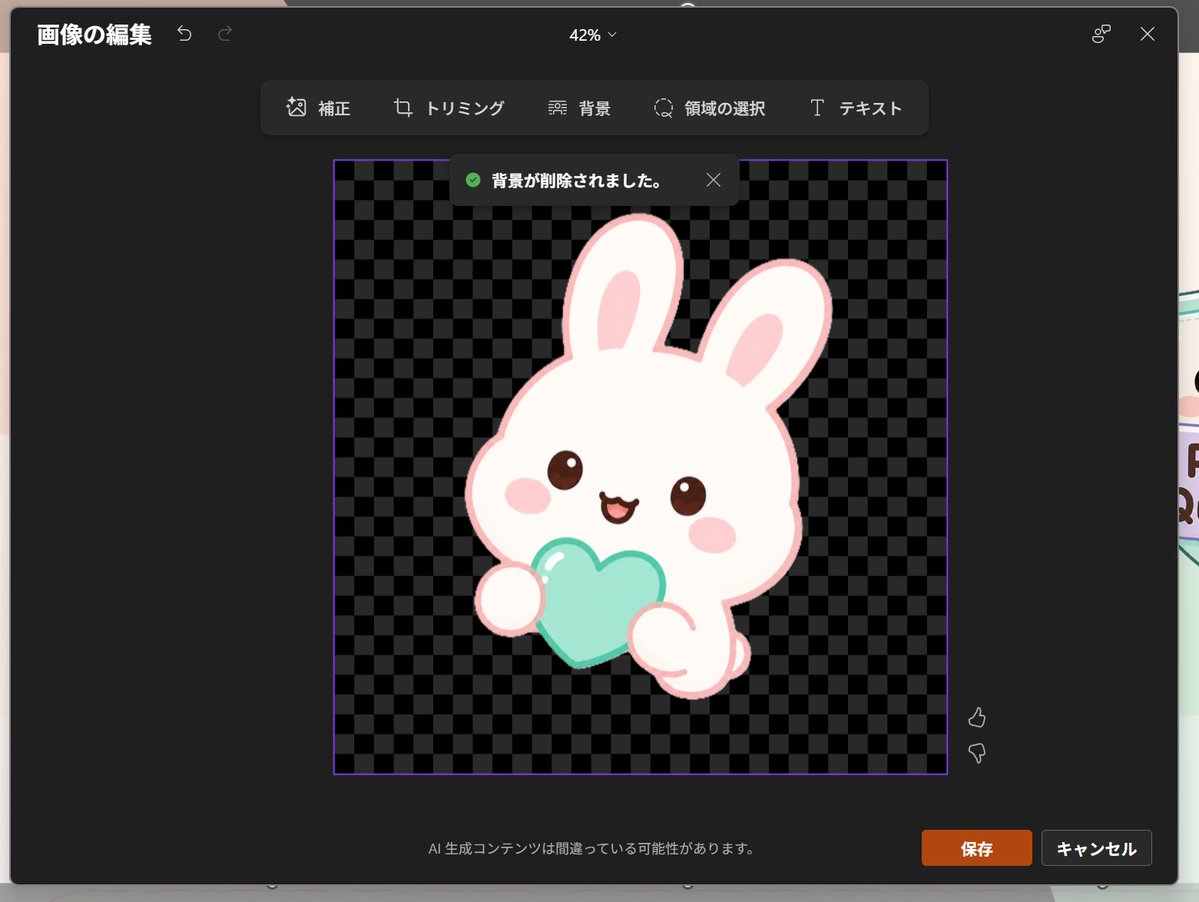
Editor Ikon Kelinci PowerPoint Jepang
Menghasilkan tangkapan layar pengeditan gambar bergaya PowerPoint Jepang gelap yang menampilkan ikon kelinci kawaii dengan latar belakang transparan, berguna untuk maket UI dan visual presentasi.
Ini adalah contoh kasus GPT Image 2 untuk Inspirasi Lainnya . Gunakan contoh siap salin di bawah ini untuk menghasilkan visual serupa, dan tinjau atribusi Awesome GPT Image 2 Prompts serta hak penggunaan komersial sebelum digunakan kembali.
Free 1K preview
Generate one preview image instantly, no sign-up required.
Free text preview doesn’t preserve reference-image consistency.
Mengingatkan
Prompt siap salin
Goal: Create a realistic screenshot of a dark-themed PowerPoint-style image editing window in Japanese, showing a cute dreamy kawaii icon after background removal.

Canvas: 1024×768 landscape screenshot with a dark charcoal modal editor centered on screen, rounded corners, subtle shadow, and a faint glimpse of the underlying slide behind the modal edges. The interface zoom indicator at the top center reads “42%”.

Layout: At the top left, show the Japanese title “画像の編集” with two small undo/redo arrow icons. At the top right, show a small connected-dots icon and an X close icon. Below the top bar, center a floating toolbar with exactly 6 tools labeled: “補正”, “トリミング”, “背景”, “領域の選択”, “テキスト”, plus their small simple line icons, arranged horizontally in dark rounded rectangles.

Main editing area: In the center, place a square image area outlined with a thin purple border. Inside it, use a black and dark-gray checkerboard transparency pattern. Near the top of this square, show a dark notification toast with a green check icon and the Japanese text “背景が削除されました。” plus a small X close icon.

Subject details: Center the icon inside the checkerboard square: one pastel yume-kawaii white rabbit mascot with a thick pale pink outline, oversized rounded head, two long upright ears with pink inner ears, small brown glossy eyes, pink oval blush cheeks, and a happy open mouth. The bunny holds exactly 1 mint-aqua heart-shaped object in front of its body with two rounded paws visible. Add soft highlights on the heart and a clean sticker-like vector style with no harsh shadows. The character should feel like a cute app icon or sticker. Use {argument name="character" default="a white kawaii rabbit"}, {argument name="held object" default="a mint-aqua heart"}, and {argument name="accent color" default="pale pink"}.

Footer and controls: At the bottom center of the modal, show the small Japanese warning text “AI 生成コンテンツは間違っている可能性があります。” At the bottom right, show exactly 2 buttons: an orange “保存” button and a dark gray “キャンセル” button. Near the right side of the image area, include exactly 2 small vertical feedback icons: thumbs up above thumbs down.

Visual style: Realistic software screenshot, crisp UI text, dark Microsoft-style interface, clean Japanese typography, transparent-background checkerboard, cute pastel sticker art. Keep the composition faithful to a PowerPoint built-in image editor after background removal, not a standalone illustration.
Variabel perintah
Placeholder argumen yang dapat diedit ditemukan dalam prompt, beserta nilai defaultnya.
Best for
- - Inspirasi Lainnya visual exploration
- - Image generation and reference-image edits
- - Reusable briefs that keep source attribution visible
Change these parts
- - Subject, product, character, or scene
- - Aspect ratio, camera, lighting, and background
- - Brand, text, color, and output constraints
Recommended model and settings
- - Model: gpt-image-2
- - Input mode: Gambar ke Gambar
- - Aspect ratio: source
- - Commercial status: review original source
How to use this prompt
- 1. Copy the prompt and preserve its structure for the first test.
- 2. Replace the subject, context, and publishing channel.
- 3. Change one camera, lighting, or style variable per iteration.
- 4. Inspect the output, source, text, and rights before reuse.
Limitations, source, and reuse cautions
- - Generated output is an editable draft, not factual, legal, or rights evidence.
- - Review the linked source, people, brands, logos, text, and third-party media before commercial use.
Lebih banyak kasus dalam kategori ini
Diprioritaskan berdasarkan kategori, kompatibilitas mode input, kualitas, dan risiko yang lebih rendah.
Catatan penggunaan kembali dan sumber
Gunakan perintah ini dengan aman setelah melihat pratinjau kasus.
- 1.Salin perintah tersebut atau buka langsung di Dovoo dengan tombol pembuatan.
- 2.Sesuaikan variabel, rasio aspek, dan gambar referensi untuk kebutuhan Anda sendiri.
- 3.Sebelum mempublikasikan atau menggunakan untuk tujuan berbayar, verifikasi hak sumber, persyaratan atribusi, dan risiko merek atau citra.