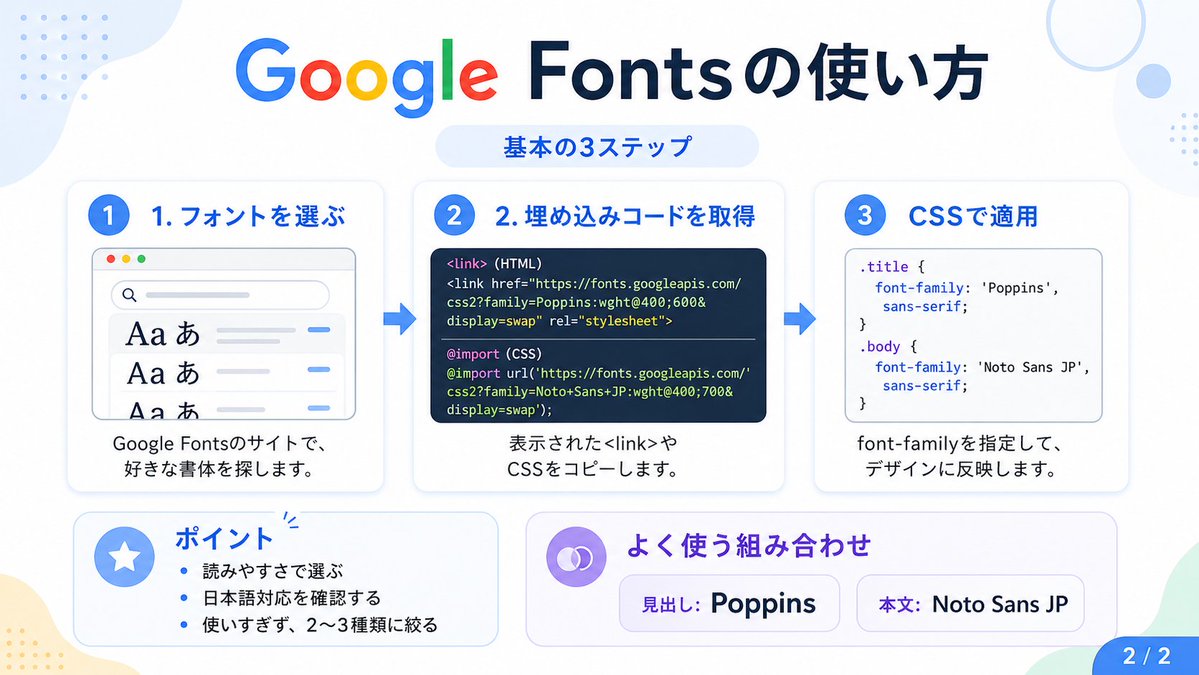
Infografis Tutorial Google Fonts Bahasa Jepang
Perintah ini menghasilkan infografis Jepang yang rapi yang menjelaskan tiga langkah dasar untuk menggunakan Google Fonts, cocok untuk unggahan media sosial, tutorial, dan slide presentasi.
Ini adalah contoh kasus GPT Image 2 untuk Grafis & Poster . Gunakan contoh siap salin di bawah ini untuk menghasilkan visual serupa, dan tinjau atribusi Awesome GPT Image 2 Prompts serta hak penggunaan komersial sebelum digunakan kembali.
Butuh seluruh rangkaian prompt? Gunakan Grafis & Poster Untuk contoh terkait lainnya, kunjungi pusat topik, atau buka GPT Image 2 katalog cepat untuk indeks contoh lengkap, struktur yang dapat digunakan kembali, dan atribusi sumber.
Free 1K preview
Generate one preview image instantly, no sign-up required.
3784/4000
Mengingatkan
Prompt siap salin
{
  "type": "Japanese infographic",
  "topic": "How to use Google Fonts",
  "style": "clean modern flat design, white background, soft pastel blue and mint corner blobs, rounded cards with subtle shadows, tech tutorial aesthetic, crisp vector typography and UI illustrations",
  "canvas": {
    "aspect_ratio": "16:9"
  },
  "headline": {
    "main": "Google Fontsの使い方",
    "sub": "基本の3ステップ"
  },
  "layout": {
    "sections": [
      {
        "title": "1. フォントを選ぶ",
        "position": "left",
        "count": 1,
        "labels": [
          "1. フォントを選ぶ"
        ],
        "card_style": "rounded white panel with light blue border/shadow",
        "icon": "blue numbered circle with 1",
        "illustration": "browser window showing a font search interface, 3 visible font preview rows with large Aa あ samples, a search bar at top, small colored window buttons, light gray interface lines and blue accent dashes",
        "body_text": "Google Fontsのサイトで、好きな書体を探します。"
      },
      {
        "title": "2. 埋め込みコードを取得",
        "position": "center",
        "count": 1,
        "labels": [
          "2. 埋め込みコードを取得"
        ],
        "card_style": "rounded white panel with light blue border/shadow",
        "icon": "blue numbered circle with 2",
        "illustration": "dark code panel with two labeled code examples separated by a thin divider",
        "code_blocks": {
          "count": 2,
          "labels": [
            "<link> (HTML)",
            "@import (CSS)"
          ],
          "content": [
            "<link href=\"https://fonts.googleapis.com/css2?family=Poppins:wght@400;600&display=swap\" rel=\"stylesheet\">",
            "@import url('https://fonts.googleapis.com/css2?family=Noto+Sans+JP:wght@400;700&display=swap');"
          ]
        },
        "body_text": "表示された<link>やCSSをコピーします。"
      },
      {
        "title": "3. CSSで適用",
        "position": "right",
        "count": 1,
        "labels": [
          "3. CSSで適用"
        ],
        "card_style": "rounded white panel with light blue border/shadow",
        "icon": "blue numbered circle with 3",
        "illustration": "white code card containing CSS with two selectors and font-family rules",
        "code_blocks": {
          "count": 2,
          "labels": [
            ".title",
            "body"
          ],
          "content": [
            ".title { font-family: 'Poppins', sans-serif; }",
            "body { font-family: 'Noto Sans JP', sans-serif; }"
          ]
        },
        "body_text": "font-familyを指定して、デザインに反映します。"
      },
      {
        "title": "ポイント",
        "position": "bottom-left",
        "count": 3,
        "labels": [
          "読みやすさで選ぶ",
          "日本語対応を確認する",
          "使いすぎず、2〜3種類に絞る"
        ],
        "card_style": "rounded white panel with pale blue tint",
        "icon": "blue star in a circle",
        "body_format": "bullet list"
      },
      {
        "title": "よく使う組み合わせ",
        "position": "bottom-center-right",
        "count": 2,
        "labels": [
          "見出し: Poppins",
          "Main text: Noto Sans JP"
        ],
        "card_style": "rounded white panel with pale lavender tint",
        "icon": "purple linked-rings symbol",
        "body_format": "two pill-shaped example boxes"
      }
    ],
    "connectors": {
      "count": 2,
      "style": "large blue right-pointing arrows between the 3 top cards"
    },
    "pagination": {
      "text": "2 / 2",
      "position": "bottom-right",
      "style": "blue rounded corner tab"
    }
  },
  "text_language": "Japanese",
  "color_palette": {
    "primary_blue": "#2f80ff",
    "navy": "#0f2b5b",
    "google_colors": [
      "#4285F4",
      "#DB4437",
      "#F4B400",
      "#0F9D58"
    ],
    "lavender": "#8b6cff",
    "background": "#ffffff"
  }
}
Best for
- - Grafis & Poster visual exploration
- - Image generation and reference-image edits
- - Reusable briefs that keep source attribution visible
Change these parts
- - Subject, product, character, or scene
- - Aspect ratio, camera, lighting, and background
- - Brand, text, color, and output constraints
Recommended model and settings
- - Model: gpt-image-2
- - Input mode: Teks ke Gambar
- - Aspect ratio: source
- - Commercial status: review original source
How to use this prompt
- 1. Copy the prompt and preserve its structure for the first test.
- 2. Replace the subject, context, and publishing channel.
- 3. Change one camera, lighting, or style variable per iteration.
- 4. Inspect the output, source, text, and rights before reuse.
Limitations, source, and reuse cautions
- - Generated output is an editable draft, not factual, legal, or rights evidence.
- - Review the linked source, people, brands, logos, text, and third-party media before commercial use.
Diimpor dari Awesome GPT Image 2 Prompts . Atribusi diperlukan. Status penggunaan komersial adalah allowed ; tinjau hak sumber sebelum penggunaan berbayar.
Lebih banyak kasus dalam kategori ini
Diprioritaskan berdasarkan kategori, kompatibilitas mode input, kualitas, dan risiko yang lebih rendah.



Catatan penggunaan kembali dan sumber
Gunakan perintah ini dengan aman setelah melihat pratinjau kasus.
- 1.Salin perintah tersebut atau buka langsung di Dovoo dengan tombol pembuatan.
- 2.Sesuaikan variabel, rasio aspek, dan gambar referensi untuk kebutuhan Anda sendiri.
- 3.Sebelum mempublikasikan atau menggunakan untuk tujuan berbayar, verifikasi hak sumber, persyaratan atribusi, dan risiko merek atau citra.