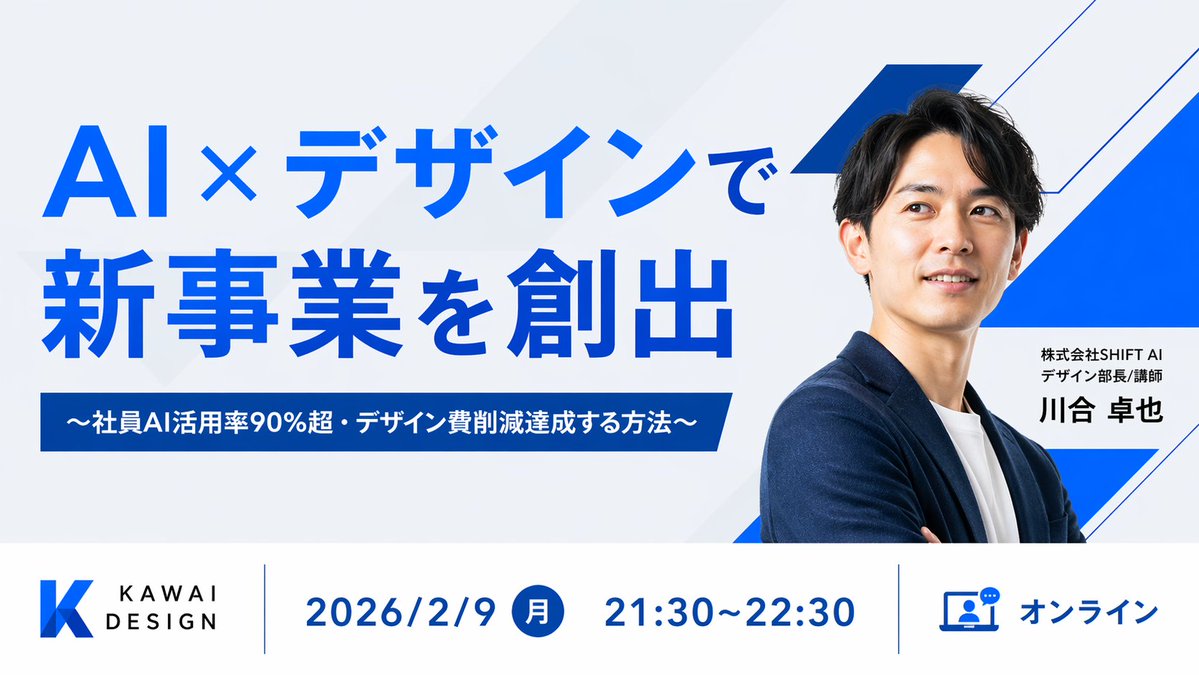
Miniature du webinaire japonais sur la conception d'IA
Une vignette soignée pour webinaire d'entreprise, avec une typographie japonaise audacieuse, un portrait de l'intervenant et une barre d'informations structurée pour promouvoir les événements professionnels en ligne.
Il s'agit d'un exemple de visuel pour la catégorie { GPT Image 2 Graphique et affiche . Utilisez le visuel ci-dessous pour générer des éléments visuels similaires et vérifiez les conditions d'utilisation (attribution Awesome GPT Image 2 Prompts et droits d'utilisation commerciale) avant toute réutilisation.
Free 1K preview
Generate one preview image instantly, no sign-up required.
Prompt
invite prête à être copiée
Create a clean, modern Japanese webinar thumbnail in a wide 16:9 layout with a corporate tech-design aesthetic. Use a very light gray background with subtle diagonal translucent panels and bold electric-blue geometric accents, including 3 angular blue-and-white ribbon shapes on the right side behind the speaker. The composition is split into 2 main horizontal sections: a large hero area on top and an information bar across the bottom. In the top-left hero area, place a large bold sans-serif Japanese headline in vivid blue on 2 lines reading {argument name="headline text" default="AI×デザインで\n新事業を創出"}. Beneath it, add a dark-blue rectangular banner with centered white bold text reading {argument name="subheadline text" default="〜社員AI活用率90%超・デザイン費削減達成する方法〜"}. On the right half, show a sharply lit half-body portrait of {argument name="speaker name" default="Takaya Kawai"}, an East Asian man in his 30s with short black hair, wearing a navy blazer over a white crew-neck shirt, arms folded, facing slightly left toward the headline. Show every face clearly with natural, detailed facial features. Next to his torso, place a white rectangular name card with 2 lines of small black Japanese text above a larger bold black name: {argument name="speaker title" default="株式会社SHIFT AI\nデザイン部長/講師"} and {argument name="speaker name" default="Takaya Kawai"}. Across the bottom, create a white info bar with thin blue vertical dividers and 4 visual components from left to right: 1) a blue gradient angular K logo with the brand text KAWAI DESIGN in black uppercase sans-serif, 2) the date in large blue text reading 2026/2/9, 3) a blue filled circle containing the white Japanese weekday 月 followed by the time 21:30〜22:30 in large blue text, 4) a blue outlined laptop-and-chat icon followed by the blue text オンライン. Keep typography bold and highly legible, with strong hierarchy, generous spacing, precise alignment, minimal clutter, and a polished webinar promotional design suitable for a business landing page or social media thumbnail.Variables d'invite
Espaces réservés aux arguments modifiables présents dans l'invite, avec leurs valeurs par défaut.
Best for
- - Graphique et affiche visual exploration
- - Image generation and reference-image edits
- - Reusable briefs that keep source attribution visible
Change these parts
- - Subject, product, character, or scene
- - Aspect ratio, camera, lighting, and background
- - Brand, text, color, and output constraints
Recommended model and settings
- - Model: gpt-image-2
- - Input mode: Texte vers image
- - Aspect ratio: source
- - Commercial status: review original source
How to use this prompt
- 1. Copy the prompt and preserve its structure for the first test.
- 2. Replace the subject, context, and publishing channel.
- 3. Change one camera, lighting, or style variable per iteration.
- 4. Inspect the output, source, text, and rights before reuse.
Limitations, source, and reuse cautions
- - Generated output is an editable draft, not factual, legal, or rights evidence.
- - Review the linked source, people, brands, logos, text, and third-party media before commercial use.
Plus de cas dans cette catégorie
Priorisé par catégorie, compatibilité du mode d'entrée, qualité et risque moindre.
Réutilisation et notes de source
Utilisez cette invite en toute sécurité après avoir prévisualisé le dossier.
- 1.Copiez l'invite ou ouvrez-la directement dans Dovoo avec le bouton de génération.
- 2.Ajustez les variables, le format d'image et les images de référence en fonction de votre cas d'utilisation.
- 3.Avant toute publication ou utilisation payante, vérifiez les droits d'auteur, les exigences d'attribution et les risques liés à la marque ou à l'image.