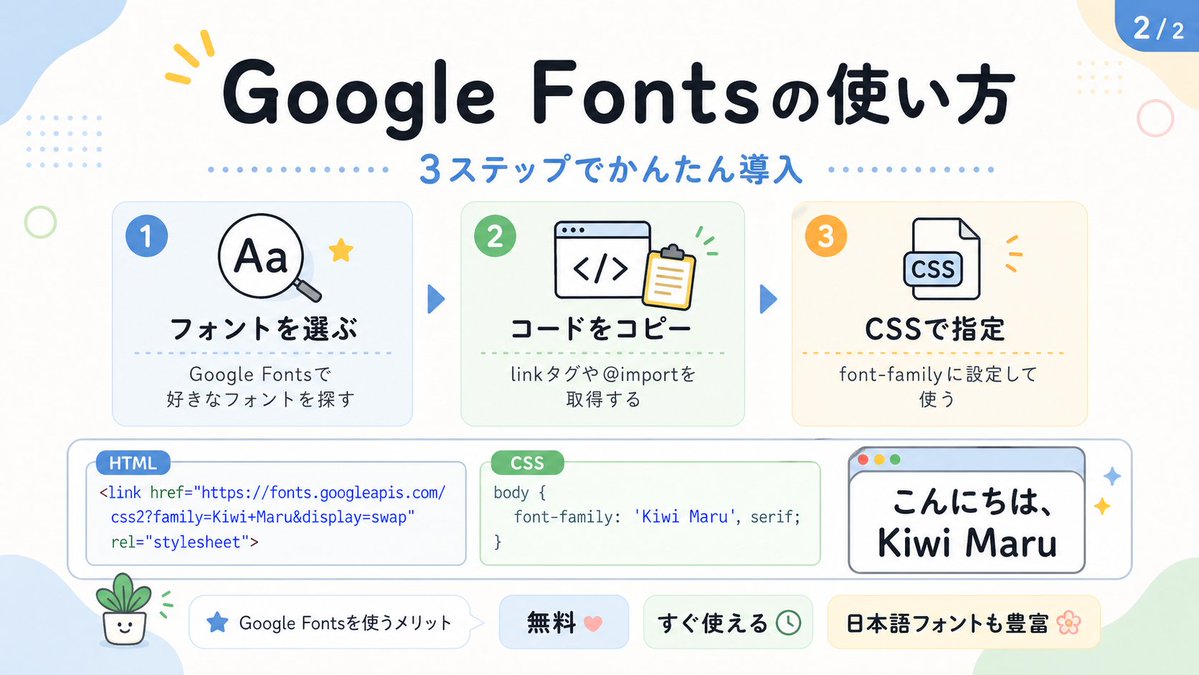
Infographie tutorielle sur les polices Google mignonnes
Cette invite génère une diapositive infographique éducative japonaise aux tons pastel expliquant la configuration de Google Fonts en trois étapes, adaptée aux carrousels des médias sociaux ou aux articles de tutoriels techniques.
Il s'agit d'un exemple de visuel pour la catégorie { GPT Image 2 Graphique et affiche . Utilisez le visuel ci-dessous pour générer des éléments visuels similaires et vérifiez les conditions d'utilisation (attribution Awesome GPT Image 2 Prompts et droits d'utilisation commerciale) avant toute réutilisation.
Besoin de l'ensemble complet des invites ? Utilisez le Graphique et affiche Consultez le centre thématique pour plus d'exemples connexes, ou ouvrez le GPT Image 2 catalogue rapide pour l'index complet des exemples, les structures réutilisables et l'attribution des sources.
Free 1K preview
Generate one preview image instantly, no sign-up required.
3261/4000
Prompt
invite prête à être copiée
Create a cute pastel Japanese infographic slide with a clean white background and soft rounded abstract corner blobs in pale blue, cream, and light green. The design is friendly, educational, and modern, with thick rounded sans-serif Japanese typography, subtle drop shadows, thin gray outlines, dotted divider accents, and small decorative doodles. At the top center, place a large bold headline in dark navy that reads "Google Fontsの使い方". Directly below it, add a blue subheadline reading "3ステップでかんたん導入" with a horizontal row of small blue dots on both sides. In the top right corner, add a rounded blue page badge that reads "2/2".

Arrange 3 rounded rectangular step cards across the upper middle row, evenly spaced left to right, each with a pale tinted background, soft border, and a colored circular number badge in the upper left. Card 1 has a pale blue background and a blue badge with "1". Inside, show a simple magnifying glass icon over the letters "Aa" plus a small yellow star accent. The bold title reads "フォントを選ぶ" and the smaller text below reads "Google Fontsで
好きなフォントを探す". Card 2 has a pale green background and a green badge with "2". Inside, show a browser window icon with code brackets "</>" and a clipboard, plus tiny green motion marks. The bold title reads "コードをコピー" and the smaller text below reads "linkタグや@importを
取得する". Card 3 has a pale cream background and an orange badge with "3". Inside, show a document icon labeled "CSS" with small orange accent marks. The bold title reads "CSSで指定" and the smaller text below reads "font-family に設定して
使う". Place 2 medium blue triangular arrows between the 3 cards to show progression.

Across the lower middle, create 3 horizontally aligned demo boxes. The left box is a rounded white code panel with a small blue tab label reading "HTML". Inside, display this code in blue text exactly across 3 lines: "<link href=\"https://fonts.googleapis.com/"
"css2?family=Kiwi+Maru&display=swap"
"rel=\"stylesheet\">". The center box is a rounded white code panel with a green tab label reading "CSS". Inside, display dark text exactly as: "body {"
"    font-family: 'Kiwi Maru', serif;"
"}". The right box is a rounded white mock browser window with a pale blue title bar and 3 tiny circular window buttons at top left in red, yellow, and green. Inside, show large Japanese sample text in black reading "こんにちは、
Kiwi Maru" in a cute rounded handwritten-style font. Add 2 small sparkle accents to the right of this browser window.

At the bottom, place 4 pill-shaped badges from left to right. Badge 1 is white with a small blue star icon and text "Google Fontsを使うメリット". Badge 2 is pale blue with bold text "無料" followed by a pink heart. Badge 3 is pale green with bold text "すぐ使える" followed by a small clock icon. Badge 4 is pale yellow with bold text "日本語フォントも豊富" followed by a flower icon.

Add 4 extra decorative elements around the canvas: a yellow 3-stroke sparkle near the top left of the headline, a pale blue dotted square grid in the upper left background, a thin light green ring on the left side, and a tiny smiling potted plant illustration in the lower left corner. Keep the whole composition flat vector-like, crisp, cute, and highly legible, in a social-media educational carousel style.
Best for
- - Graphique et affiche visual exploration
- - Image generation and reference-image edits
- - Reusable briefs that keep source attribution visible
Change these parts
- - Subject, product, character, or scene
- - Aspect ratio, camera, lighting, and background
- - Brand, text, color, and output constraints
Recommended model and settings
- - Model: gpt-image-2
- - Input mode: Texte vers image
- - Aspect ratio: source
- - Commercial status: review original source
How to use this prompt
- 1. Copy the prompt and preserve its structure for the first test.
- 2. Replace the subject, context, and publishing channel.
- 3. Change one camera, lighting, or style variable per iteration.
- 4. Inspect the output, source, text, and rights before reuse.
Limitations, source, and reuse cautions
- - Generated output is an editable draft, not factual, legal, or rights evidence.
- - Review the linked source, people, brands, logos, text, and third-party media before commercial use.
Importé de Awesome GPT Image 2 Prompts . L'attribution est requise. Le statut d'utilisation commerciale est allowed ; veuillez vérifier les droits d'auteur avant toute utilisation payante.
Plus de cas dans cette catégorie
Priorisé par catégorie, compatibilité du mode d'entrée, qualité et risque moindre.
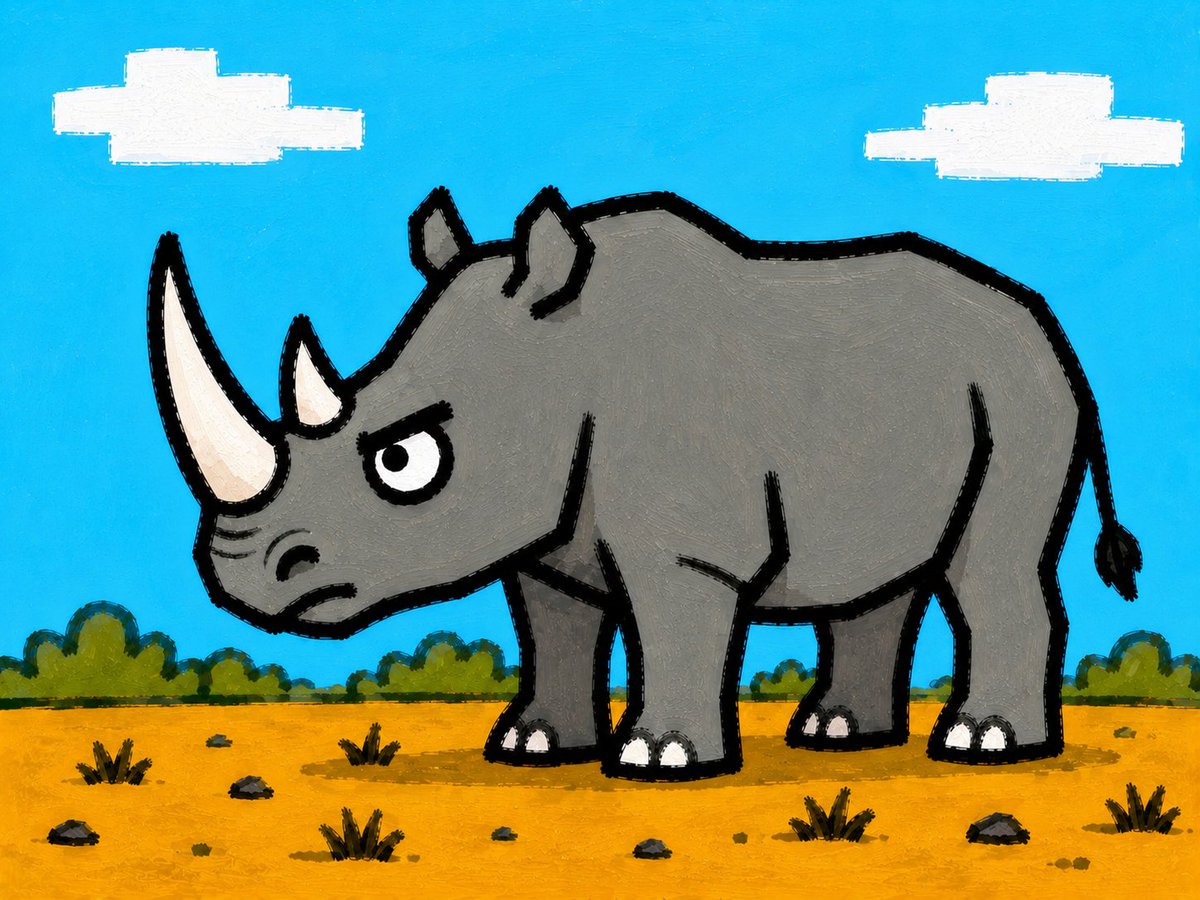
Grumpy Rhino Storybook Illustration
Texte vers image

Y2K Style Photo Booth Collage
Texte vers image

Martial Arts Legend Character Bible Sheet
Texte vers image

Surreal 3D Chess Match Artwork
Texte vers image

Pink Hijab Mirror Selfie Portrait
Texte vers image
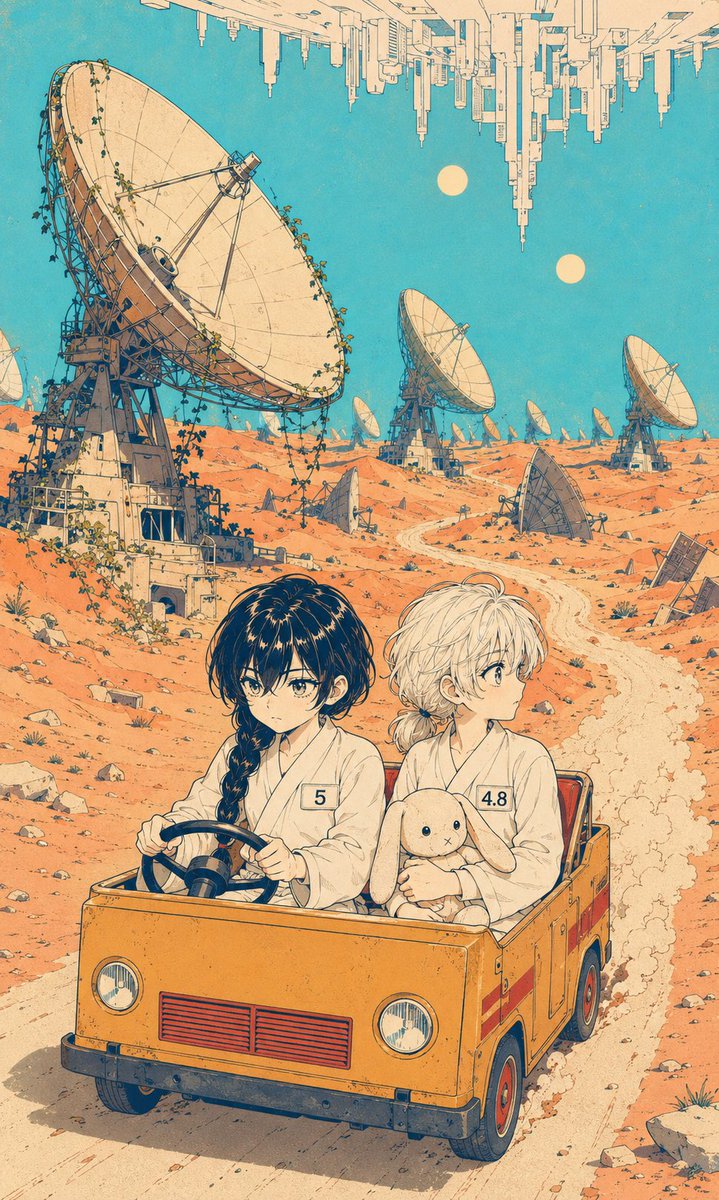
Manga Desert Radio Telescope Road Trip
Texte vers image
Réutilisation et notes de source
Utilisez cette invite en toute sécurité après avoir prévisualisé le dossier.
- 1.Copiez l'invite ou ouvrez-la directement dans Dovoo avec le bouton de génération.
- 2.Ajustez les variables, le format d'image et les images de référence en fonction de votre cas d'utilisation.
- 3.Avant toute publication ou utilisation payante, vérifiez les droits d'auteur, les exigences d'attribution et les risques liés à la marque ou à l'image.