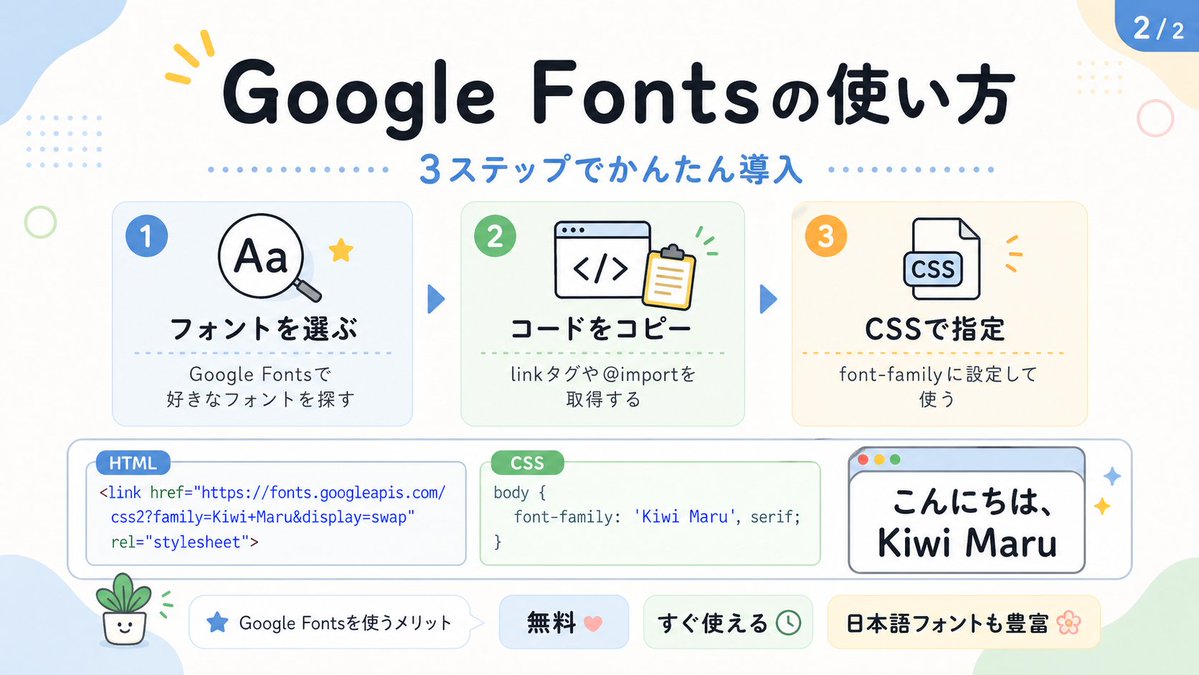
Infografía tutorial sobre fuentes de Google bonitas
Esta función genera una diapositiva infográfica educativa en japonés con colores pastel que explica la configuración de Google Fonts en tres pasos, ideal para carruseles en redes sociales o publicaciones de tutoriales técnicos.
Este es un ejemplo GPT Image 2 para Diseño gráfico y carteles . Utilice la plantilla lista para copiar que aparece a continuación para generar imágenes similares y revise la atribución de Awesome GPT Image 2 Prompts y los derechos de uso comercial antes de reutilizarla.
¿Necesitas el conjunto completo de indicaciones? Usa el Diseño gráfico y carteles centro de temas para ver más ejemplos relacionados, o abra el GPT Image 2 catálogo de avisos Para ver el índice completo de ejemplos, las estructuras reutilizables y la atribución de fuentes.
Free 1K preview
Generate one preview image instantly, no sign-up required.
3261/4000
Prompt
Mensaje listo para copiar
Create a cute pastel Japanese infographic slide with a clean white background and soft rounded abstract corner blobs in pale blue, cream, and light green. The design is friendly, educational, and modern, with thick rounded sans-serif Japanese typography, subtle drop shadows, thin gray outlines, dotted divider accents, and small decorative doodles. At the top center, place a large bold headline in dark navy that reads "Google Fontsの使い方". Directly below it, add a blue subheadline reading "3ステップでかんたん導入" with a horizontal row of small blue dots on both sides. In the top right corner, add a rounded blue page badge that reads "2/2".

Arrange 3 rounded rectangular step cards across the upper middle row, evenly spaced left to right, each with a pale tinted background, soft border, and a colored circular number badge in the upper left. Card 1 has a pale blue background and a blue badge with "1". Inside, show a simple magnifying glass icon over the letters "Aa" plus a small yellow star accent. The bold title reads "フォントを選ぶ" and the smaller text below reads "Google Fontsで
好きなフォントを探す". Card 2 has a pale green background and a green badge with "2". Inside, show a browser window icon with code brackets "</>" and a clipboard, plus tiny green motion marks. The bold title reads "コードをコピー" and the smaller text below reads "linkタグや@importを
取得する". Card 3 has a pale cream background and an orange badge with "3". Inside, show a document icon labeled "CSS" with small orange accent marks. The bold title reads "CSSで指定" and the smaller text below reads "font-family に設定して
使う". Place 2 medium blue triangular arrows between the 3 cards to show progression.

Across the lower middle, create 3 horizontally aligned demo boxes. The left box is a rounded white code panel with a small blue tab label reading "HTML". Inside, display this code in blue text exactly across 3 lines: "<link href=\"https://fonts.googleapis.com/"
"css2?family=Kiwi+Maru&display=swap"
"rel=\"stylesheet\">". The center box is a rounded white code panel with a green tab label reading "CSS". Inside, display dark text exactly as: "body {"
"    font-family: 'Kiwi Maru', serif;"
"}". The right box is a rounded white mock browser window with a pale blue title bar and 3 tiny circular window buttons at top left in red, yellow, and green. Inside, show large Japanese sample text in black reading "こんにちは、
Kiwi Maru" in a cute rounded handwritten-style font. Add 2 small sparkle accents to the right of this browser window.

At the bottom, place 4 pill-shaped badges from left to right. Badge 1 is white with a small blue star icon and text "Google Fontsを使うメリット". Badge 2 is pale blue with bold text "無料" followed by a pink heart. Badge 3 is pale green with bold text "すぐ使える" followed by a small clock icon. Badge 4 is pale yellow with bold text "日本語フォントも豊富" followed by a flower icon.

Add 4 extra decorative elements around the canvas: a yellow 3-stroke sparkle near the top left of the headline, a pale blue dotted square grid in the upper left background, a thin light green ring on the left side, and a tiny smiling potted plant illustration in the lower left corner. Keep the whole composition flat vector-like, crisp, cute, and highly legible, in a social-media educational carousel style.
Best for
- - Diseño gráfico y carteles visual exploration
- - Image generation and reference-image edits
- - Reusable briefs that keep source attribution visible
Change these parts
- - Subject, product, character, or scene
- - Aspect ratio, camera, lighting, and background
- - Brand, text, color, and output constraints
Recommended model and settings
- - Model: gpt-image-2
- - Input mode: Texto a imagen
- - Aspect ratio: source
- - Commercial status: review original source
How to use this prompt
- 1. Copy the prompt and preserve its structure for the first test.
- 2. Replace the subject, context, and publishing channel.
- 3. Change one camera, lighting, or style variable per iteration.
- 4. Inspect the output, source, text, and rights before reuse.
Limitations, source, and reuse cautions
- - Generated output is an editable draft, not factual, legal, or rights evidence.
- - Review the linked source, people, brands, logos, text, and third-party media before commercial use.
Importado de Awesome GPT Image 2 Prompts . Se requiere atribución. El estado de uso comercial es allowed ; revise los derechos de la fuente antes de su uso comercial.
Más casos en esta categoría
Priorizados por categoría, compatibilidad con el modo de entrada, calidad y menor riesgo.




Notas sobre la reutilización y la fuente
Utilice esta opción de forma segura después de previsualizar el caso.
- 1.Copia la solicitud o ábrela directamente en Dovoo con el botón de generación.
- 2.Ajusta las variables, la relación de aspecto y las imágenes de referencia según tus necesidades.
- 3.Antes de publicar o utilizar el servicio de forma remunerada, verifique los derechos de autor, los requisitos de atribución y los riesgos relacionados con la marca o la imagen de la persona.