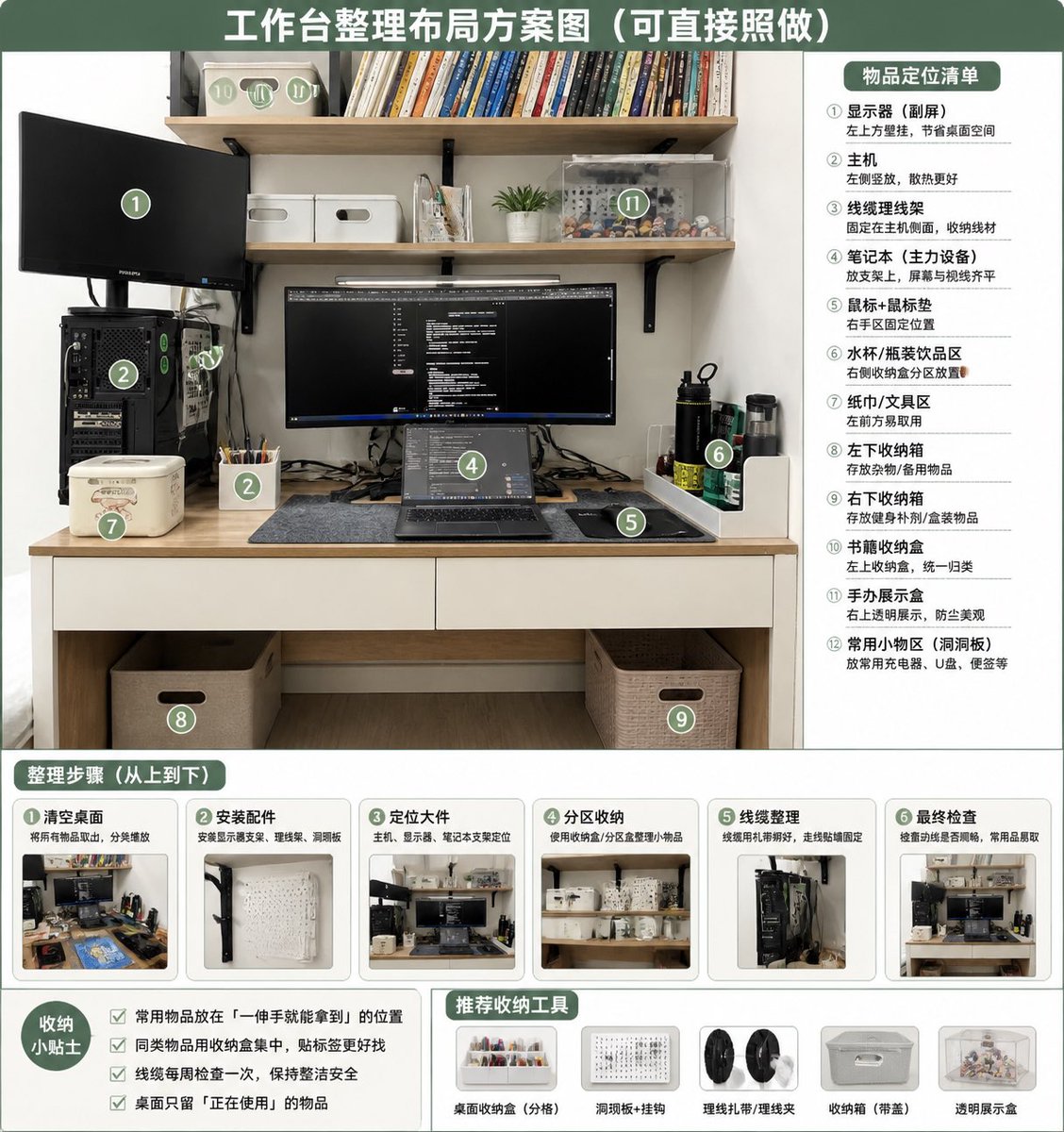
Infografik zur Schreibtischorganisation
Verwandelt ein Foto eines unordentlichen Schreibtisches in einen übersichtlichen, nummerierten Organisationsplan mit Zonen, Schritten, Tipps und empfohlenen Aufbewahrungsmöglichkeiten.
Dies ist ein GPT Image 2 -Prompt für Grafik & Poster . Verwenden Sie den unten stehenden, kopierfertigen Prompt, um ähnliche Grafiken zu erstellen, und überprüfen Sie vor der Wiederverwendung Awesome GPT Image 2 Prompts -Quellenangaben sowie die kommerziellen Nutzungsrechte.
Free 1K preview
Generate one preview image instantly, no sign-up required.
Free text preview doesn’t preserve reference-image consistency.
Eingabeaufforderung
Kopierfertige Eingabeaufforderung
Using REFERENCE_0 as the source photo, create a clean, realistic “after organization” desktop layout plan infographic. Keep the same desk, shelves, monitor/laptop setup, PC tower position, and overall room viewpoint, but tidy the workspace: route cables neatly, clear the desktop, place items into defined storage zones, add matching storage boxes/baskets, a pegboard/accessory area, pen cup, book storage box, transparent display case, and dedicated bottle/tissue/small-tool areas. Use a green-and-white instructional poster style with a large top headline: {argument name="headline text" default="Workstation Organization Layout Plan (Can be directly followed)"}. Overlay 12 green circular numbered markers on the organized photo and include a right-side panel titled {argument name="right panel title" default="Item Placement List"} listing exactly 12 labeled zones: ① monitor / secondary screen, ② main PC tower, ③ cable management, ④ laptop work area, ⑤ mouse pad / mouse area, ⑥ water cup / bottle area, ⑦ tissue / tool area, ⑧ left under-desk storage box, ⑨ right under-desk storage box, ⑩ book storage box, ⑪ figure display area, ⑫ common small-items area / pegboard. Add a bottom section titled {argument name="steps title" default="Organization Steps (From top to bottom)"} with exactly 6 step cards, each containing a small before/after-style thumbnail and short Chinese labels: ① clear desktop, ② install accessories, ③ position large items, ④ partition storage, ⑤ cable management, ⑥ final inspection. Add a bottom-left tips box titled {argument name="tips title" default="Storage Tips"} with exactly 4 checkbox tips about putting frequently used items within one-hand reach, grouping similar items, checking cables weekly, and keeping only currently used items on the desk. Add a bottom-center/right recommendations row titled {argument name="tools title" default="Recommended Storage Tools"} with exactly 5 product icons: desktop organizer tray, pegboard + hooks, cable ties / cable clips, storage box with handle, transparent display box. Make the design neat, practical, bright, and directly actionable, like a home-office organization guide derived from the original photo.Eingabeaufforderungsvariablen
In der Eingabeaufforderung befinden sich bearbeitbare Argumentplatzhalter mit ihren Standardwerten.
Best for
- - Grafik & Poster visual exploration
- - Image generation and reference-image edits
- - Reusable briefs that keep source attribution visible
Change these parts
- - Subject, product, character, or scene
- - Aspect ratio, camera, lighting, and background
- - Brand, text, color, and output constraints
Recommended model and settings
- - Model: gpt-image-2
- - Input mode: Bild zu Bild
- - Aspect ratio: source
- - Commercial status: review original source
How to use this prompt
- 1. Copy the prompt and preserve its structure for the first test.
- 2. Replace the subject, context, and publishing channel.
- 3. Change one camera, lighting, or style variable per iteration.
- 4. Inspect the output, source, text, and rights before reuse.
Limitations, source, and reuse cautions
- - Generated output is an editable draft, not factual, legal, or rights evidence.
- - Review the linked source, people, brands, logos, text, and third-party media before commercial use.
Weitere Fälle in dieser Kategorie
Priorisiert nach Kategorie, Kompatibilität der Eingabemodi, Qualität und geringerem Risiko.


Hinweise zur Wiederverwendung und Quellenangabe
Verwenden Sie diese Eingabeaufforderung sicher, nachdem Sie den Fall in der Vorschau angezeigt haben.
- 1.Kopieren Sie die Eingabeaufforderung oder öffnen Sie sie direkt in Dovoo mit der Schaltfläche „Generieren“.
- 2.Passen Sie Variablen, Seitenverhältnis und Referenzbilder an Ihren Anwendungsfall an.
- 3.Vor der Veröffentlichung oder kostenpflichtigen Nutzung sollten Sie die Rechte an der Quelle, die Anforderungen an die Namensnennung sowie die Risiken für die Marke oder das Abbild prüfen.