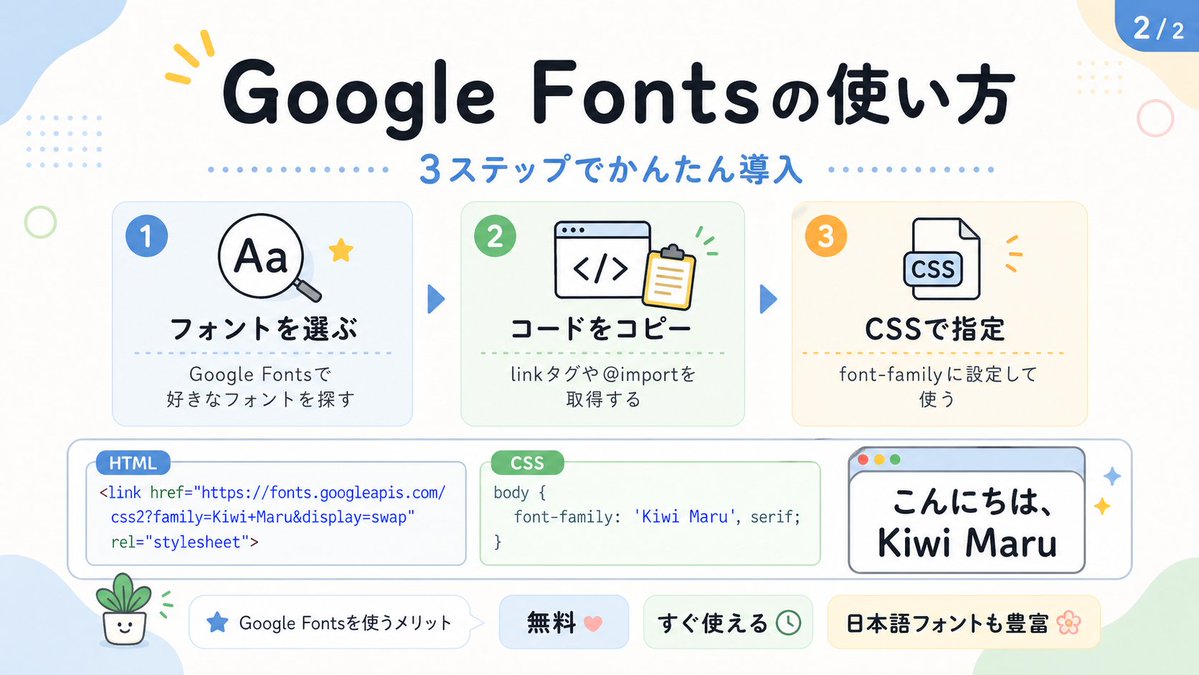
Infografik: Niedliches Google Fonts-Tutorial
Diese Eingabeaufforderung generiert eine Infografik-Folie im japanischen Pastellstil, die die Einrichtung von Google Fonts in drei Schritten erklärt und sich für Social-Media-Karussells oder technische Tutorial-Beiträge eignet.
Dies ist ein GPT Image 2 -Prompt für Grafik & Poster . Verwenden Sie den unten stehenden, kopierfertigen Prompt, um ähnliche Grafiken zu erstellen, und überprüfen Sie vor der Wiederverwendung Awesome GPT Image 2 Prompts -Quellenangaben sowie die kommerziellen Nutzungsrechte.
Benötigen Sie den vollständigen Prompt-Satz? Verwenden Sie den Grafik & Poster Weitere verwandte Beispiele finden Sie im Themen-Hub oder öffnen Sie die GPT Image 2 Prompt-Katalog für das vollständige Beispielverzeichnis, wiederverwendbare Strukturen und Quellenangaben.
Free 1K preview
Generate one preview image instantly, no sign-up required.
3261/4000
Eingabeaufforderung
Kopierfertige Eingabeaufforderung
Create a cute pastel Japanese infographic slide with a clean white background and soft rounded abstract corner blobs in pale blue, cream, and light green. The design is friendly, educational, and modern, with thick rounded sans-serif Japanese typography, subtle drop shadows, thin gray outlines, dotted divider accents, and small decorative doodles. At the top center, place a large bold headline in dark navy that reads "Google Fontsの使い方". Directly below it, add a blue subheadline reading "3ステップでかんたん導入" with a horizontal row of small blue dots on both sides. In the top right corner, add a rounded blue page badge that reads "2/2".

Arrange 3 rounded rectangular step cards across the upper middle row, evenly spaced left to right, each with a pale tinted background, soft border, and a colored circular number badge in the upper left. Card 1 has a pale blue background and a blue badge with "1". Inside, show a simple magnifying glass icon over the letters "Aa" plus a small yellow star accent. The bold title reads "フォントを選ぶ" and the smaller text below reads "Google Fontsで
好きなフォントを探す". Card 2 has a pale green background and a green badge with "2". Inside, show a browser window icon with code brackets "</>" and a clipboard, plus tiny green motion marks. The bold title reads "コードをコピー" and the smaller text below reads "linkタグや@importを
取得する". Card 3 has a pale cream background and an orange badge with "3". Inside, show a document icon labeled "CSS" with small orange accent marks. The bold title reads "CSSで指定" and the smaller text below reads "font-family に設定して
使う". Place 2 medium blue triangular arrows between the 3 cards to show progression.

Across the lower middle, create 3 horizontally aligned demo boxes. The left box is a rounded white code panel with a small blue tab label reading "HTML". Inside, display this code in blue text exactly across 3 lines: "<link href=\"https://fonts.googleapis.com/"
"css2?family=Kiwi+Maru&display=swap"
"rel=\"stylesheet\">". The center box is a rounded white code panel with a green tab label reading "CSS". Inside, display dark text exactly as: "body {"
"    font-family: 'Kiwi Maru', serif;"
"}". The right box is a rounded white mock browser window with a pale blue title bar and 3 tiny circular window buttons at top left in red, yellow, and green. Inside, show large Japanese sample text in black reading "こんにちは、
Kiwi Maru" in a cute rounded handwritten-style font. Add 2 small sparkle accents to the right of this browser window.

At the bottom, place 4 pill-shaped badges from left to right. Badge 1 is white with a small blue star icon and text "Google Fontsを使うメリット". Badge 2 is pale blue with bold text "無料" followed by a pink heart. Badge 3 is pale green with bold text "すぐ使える" followed by a small clock icon. Badge 4 is pale yellow with bold text "日本語フォントも豊富" followed by a flower icon.

Add 4 extra decorative elements around the canvas: a yellow 3-stroke sparkle near the top left of the headline, a pale blue dotted square grid in the upper left background, a thin light green ring on the left side, and a tiny smiling potted plant illustration in the lower left corner. Keep the whole composition flat vector-like, crisp, cute, and highly legible, in a social-media educational carousel style.
Best for
- - Grafik & Poster visual exploration
- - Image generation and reference-image edits
- - Reusable briefs that keep source attribution visible
Change these parts
- - Subject, product, character, or scene
- - Aspect ratio, camera, lighting, and background
- - Brand, text, color, and output constraints
Recommended model and settings
- - Model: gpt-image-2
- - Input mode: Text zu Bild
- - Aspect ratio: source
- - Commercial status: review original source
How to use this prompt
- 1. Copy the prompt and preserve its structure for the first test.
- 2. Replace the subject, context, and publishing channel.
- 3. Change one camera, lighting, or style variable per iteration.
- 4. Inspect the output, source, text, and rights before reuse.
Limitations, source, and reuse cautions
- - Generated output is an editable draft, not factual, legal, or rights evidence.
- - Review the linked source, people, brands, logos, text, and third-party media before commercial use.
Importiert von Awesome GPT Image 2 Prompts . Quellenangabe erforderlich. Status der kommerziellen Nutzung: allowed ; Rechte an der Quelle vor kostenpflichtiger Nutzung prüfen.
Weitere Fälle in dieser Kategorie
Priorisiert nach Kategorie, Kompatibilität der Eingabemodi, Qualität und geringerem Risiko.




Hinweise zur Wiederverwendung und Quellenangabe
Verwenden Sie diese Eingabeaufforderung sicher, nachdem Sie den Fall in der Vorschau angezeigt haben.
- 1.Kopieren Sie die Eingabeaufforderung oder öffnen Sie sie direkt in Dovoo mit der Schaltfläche „Generieren“.
- 2.Passen Sie Variablen, Seitenverhältnis und Referenzbilder an Ihren Anwendungsfall an.
- 3.Vor der Veröffentlichung oder kostenpflichtigen Nutzung sollten Sie die Rechte an der Quelle, die Anforderungen an die Namensnennung sowie die Risiken für die Marke oder das Abbild prüfen.