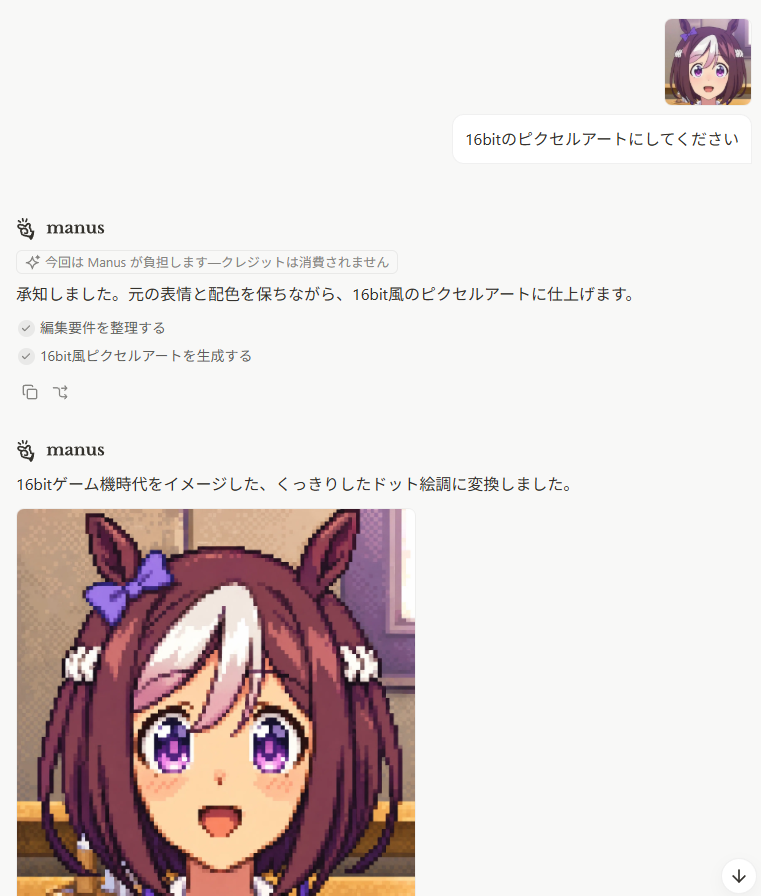
Japanese Manus Chat Pixel Art Screenshot
Generates a clean Japanese AI chat screenshot featuring Manus producing a 16-bit pixel-art anime horse-girl portrait.
Dette er et GPT Image 2 -eksempel på en prompt for Anden Inspiration . Brug den kopieringsklare prompt nedenfor til at generere lignende visuelle elementer, og gennemgå Awesome GPT Image 2 Prompts -kreditering samt kommercielle brugsrettigheder før genbrug.
Har du brug for det fulde promptsæt? Brug Anden Inspiration emnehub for flere relaterede eksempler, eller åbn GPT Image 2 hurtig katalog for det fulde eksempelindeks, genanvendelige strukturer og kildeattribution.
Free 1K preview
Generate one preview image instantly, no sign-up required.
3076/4000
Hurtig
Klar til kopiering
Goal: Create a realistic screenshot of a minimalist AI chat interface showing a Japanese conversation where a user asks for a 16-bit pixel-art conversion and the assistant responds with a generated image.

Canvas: Portrait screenshot, 768 x 896 px, white background, clean web-app UI with lots of empty space. No browser chrome, no visible sidebars. Use soft gray dividers, rounded cards, and small interface icons.

Layout: Top-right user area contains exactly 2 discrete elements: 1 small square anime avatar, and 1 rounded white chat bubble. The avatar is an anime horse-girl face with brown hair, white forelock, purple eyes, horse ears, and a purple ribbon. The user bubble text is {argument name="user request" default="16bitのピクセルアートにしてください"}.

Assistant message block 1: Place the Manus logo and the bold name “manus” on the left. Below it, show exactly 1 small rounded notice pill containing a sparkle icon and Japanese text {argument name="notice text" default="今回は Manus が負担します—クレジットは消費されません"}. Then show the assistant reply line: {argument name="first assistant reply" default="承知しました。元の表情と配色を保ちながら、16bit風のピクセルアートに仕上げます。"}. Under that, show exactly 2 checked task rows with gray circular check icons: 1) “編集要件を整理する” and 2) “16bit風ピクセルアートを生成する”. Beneath the tasks, show exactly 2 small action icons: a copy icon and a curved-arrow/regenerate-style icon.

Assistant message block 2: Lower on the page, repeat the Manus logo and bold name “manus”. Under it, show a single Japanese sentence: {argument name="second assistant reply" default="16bitゲーム機時代をイメージした、くっきりしたドット絵調に変換しました。"}. Below this sentence, align a large generated image preview to the left.

Generated image preview: The preview is a square-ish pixel-art portrait cropped by the screenshot bottom edge. It shows a cheerful anime horse-girl character in crisp 16-bit game style: brown bob-length hair with a large white forelock, tall horse ears, a purple bow on the left ear, purple sparkling eyes, small blush marks, open smiling mouth, and white hair ties near both sides. Use chunky pixel edges, visible dithering, limited retro palette, and dark outline pixels. Background inside the pixel-art image is a warm indoor room with beige wall, window light, and horizontal furniture/trim, all rendered in pixel art. The visible generated preview should occupy the lower-left portion and be cut off at the bottom of the screenshot.

Additional UI details: Add a small floating circular down-arrow button at the bottom-right corner. Keep the overall look like a Japanese Manus chat page, with generous margins, black body text, subtle gray UI accents, and no true transparency checkerboard. Count of visible repeated UI/content elements: 1 user avatar, 1 user message bubble, 2 Manus headers, 1 notice pill, 2 checked task rows, 2 small action icons, 1 generated image preview, and 1 floating down-arrow button.

Constraints: Preserve the Japanese text exactly where given in the default parameter values. Do not add extra messages, extra avatars, extra buttons, watermarks, browser tabs, or side navigation.
Promptvariabler
Redigerbare argumentpladsholdere fundet i prompten med deres standardværdier.
Variabel
user request
Misligholdelse
16bitのピクセルアートにしてください
Variabel
notice text
Misligholdelse
今回は Manus が負担します—クレジットは消費されません
Variabel
first assistant reply
Misligholdelse
承知しました。元の表情と配色を保ちながら、16bit風のピクセルアートに仕上げます。
Variabel
second assistant reply
Misligholdelse
16bitゲーム機時代をイメージした、くっきりしたドット絵調に変換しました。
Best for
- - Anden Inspiration visual exploration
- - Image generation and reference-image edits
- - Reusable briefs that keep source attribution visible
Change these parts
- - Subject, product, character, or scene
- - Aspect ratio, camera, lighting, and background
- - Brand, text, color, and output constraints
Recommended model and settings
- - Model: gpt-image-2
- - Input mode: Tekst til billede
- - Aspect ratio: source
- - Commercial status: review original source
How to use this prompt
- 1. Copy the prompt and preserve its structure for the first test.
- 2. Replace the subject, context, and publishing channel.
- 3. Change one camera, lighting, or style variable per iteration.
- 4. Inspect the output, source, text, and rights before reuse.
Limitations, source, and reuse cautions
- - Generated output is an editable draft, not factual, legal, or rights evidence.
- - Review the linked source, people, brands, logos, text, and third-party media before commercial use.
Importeret fra Awesome GPT Image 2 Prompts . Kreditering er påkrævet. Status for kommerciel brug er allowed ; gennemgå kilderettighederne før betalt brug.
Flere sager i denne kategori
Prioriteret efter kategori, kompatibilitet med inputtilstande, kvalitet og lavere risiko.
Genbrug og kildenoter
Brug denne prompt sikkert efter at have gennemgået sagen.
- 1.Kopier prompten, eller åbn den direkte i Dovoo med genereringsknappen.
- 2.Juster variabler, billedformat og referencebilleder til din egen brug.
- 3.Før udgivelse eller betalt brug skal du verificere kilderettigheder, krav til kreditering og risici forbundet med branding eller lighed.