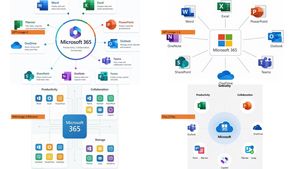
Microsoft 365 Model Comparison Infographic
Generate a four-panel comparison slide to showcase the effects of different image models rendering the Microsoft 365 ecosystem infographic.
Prompt
Copy-ready prompt
Using the provided reference image as a benchmark, and employing a concise and easy-to-read business infographic style, create a 16:9 comparison slide to demonstrate how different image generation models render information about {argument name="topic" default="Microsoft 365"} The existing Japan DX report content has been replaced with four separate sample infographics, arranged in a 2x2 grid on a white background. Layout: Four panels are used, each displaying a different Microsoft 365 ecosystem diagram, with a small horizontal orange model label placed near the left side of each panel. The four labels must be: 1){argument name="top left model label" default="GPT-Image-2"} ,2){argument name="top right model label" default="GPT-Image-1.5"} ,3){argument name="bottom left model label" default="MAI Image 2 Efficient"} and 4){argument name="bottom right model label" default="Flux.2 Flex"} Panel Content: Each panel should center on Microsoft 365, surrounded by application icons and labels. Include recognizable Microsoft-style application tiles/icons in appropriate locations, such as Word, Excel, PowerPoint, Outlook, Teams, OneDrive, SharePoint, OneNote, Forms, Planner, Loop, and Copilot. The top-left panel should be the most refined and have clear text, using a circular radial graph and concise application descriptions. The top-right panel should be simpler, with icons connecting to the central Microsoft 365 box. The bottom-left panel should present a structured category chart, including sections for Productivity, Collaboration, and Storage. The bottom-right panel should present a softer radial graph with category titles and include some imperfections or slight inconsistencies in the labels to highlight the model comparisons. Style: A clean SaaS enterprise infographic aesthetic, ample white space, thin gray connecting lines, Microsoft-style blue/green/orange/purple icons, and clear, legible English text. Retain the practical, business-document feel of the reference images, but do not reproduce their layout, red warning sections, arrows, or original text reminiscent of a Japanese government report. Constraints: Show only four model comparison examples, without additional title banners, watermarks, or Japanese text, and ensure all text is sufficiently clear to compare model performance.Prompt variables
Editable argument placeholders found in the prompt, with their default values.
Variable
topic
Default
Microsoft 365
Variable
top left model label
Default
GPT-Image-2
Variable
top right model label
Default
GPT-Image-1.5
Variable
bottom left model label
Default
MAI Image 2 Efficient
Variable
bottom right model label
Default
Flux.2 Flex
More cases in this category
Prioritized by category, input mode compatibility, quality, and lower risk.

Illustration-style personal sketch infographic
single image to imageunknown
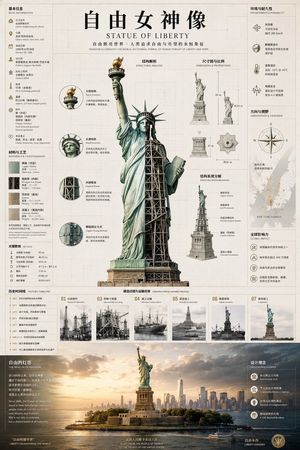
Statue of Liberty technical infographic
single image to imageunknown

Anime Mentor Whiteboard Infographic
single image to imageunknown
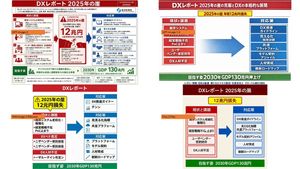
DX Infographic Model Comparison
single image to imageunknown
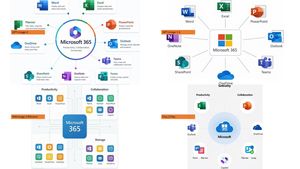
Microsoft 365 Model Comparison Infographic
single image to imageunknown
Human Organ Health Infographic
single image to imageunknown
Reuse and source notes
Use this prompt safely after previewing the case.
- 1.Copy the prompt or open it directly in Dovoo with the generation button.
- 2.Adjust variables, aspect ratio, and reference images for your own use case.
- 3.Before publishing or paid usage, verify source rights, attribution requirements, and brand or likeness risks.
Can I use this prompt commercially?
Commercial-use status is unknown. Review the original source, license, brand constraints, and legal requirements before paid usage.
Where does this case come from?
This case is imported from YouMind OpenLab awesome-gpt-image-2; keep attribution visible and check the source URL before reuse.